
A water resource model is used to make decisions, so the people who rely on it need to know who changed it, why, and who agreed to the change. Keeping the model in a Git repository on Azure DevOps gives you that record. Pywr for VS Code lets modellers and line managers do the review in the editor where they build the model.
If you are new to Git, the free Pro Git book explains commits, branches and merges, and Microsoft’s Azure Repos Git tutorial covers the same work on Azure DevOps.
What you get
Section titled “What you get”- Each commit stores who made it, when, and what changed in the model files. The history of the main branch is kept, so you can see the model as it was on any date.
- A commit that should not have been made is reverted with a new commit, so the history still shows both the mistake and its fix. You can also compare the model with any earlier version, one component at a time, with Compare two versions.
- With branch policies, a change reaches the main branch only through a pull request, and only after the people you choose have approved it: your line manager, another modeller, or both.
- The comments on the lines of the model, the replies, the votes and the linked work items are kept with the pull request after it is completed.
Azure DevOps enforces these rules, so they apply in the same way to changes made from VS Code, from the browser or from the command line. A project administrator sets them up once, as described in Set up Azure DevOps.
How a change is made
Section titled “How a change is made”flowchart TD
A["Change the model on a branch"] --> B["Create a pull request into main"]
B --> C["Reviewers comment and vote"]
C --> D{"Ready?"}
D -- "No: changes asked or policies not met" --> E["Answer the comments and push the fixes"]
E --> C
D -- "Yes: approved and policies met" --> F["Complete: merged into main"]
F -. "to undo it" .-> G["Revert in a new pull request"]
-
The modeller makes the change on a branch, for example
feature/aldwick-drought-curve, and commits it with a message that says why. -
They select Create a pull request in the Pull request panel of the Pywr sidebar, pick the main branch, link the work item that asked for the change, and describe what they tested.
-
The reviewers, such as the line manager, check out the branch from Pywr: Show pull requests. The Pull request panel then lists the nodes, edges and parameters the pull request adds, modifies or removes, and the schematic marks them. The reviewers read the changes and comment on the lines or the components they question. See Review and create pull requests. Reviewers who do not use VS Code or Git can do the same review in the browser, with the Pywr for Azure DevOps extension for Azure DevOps.
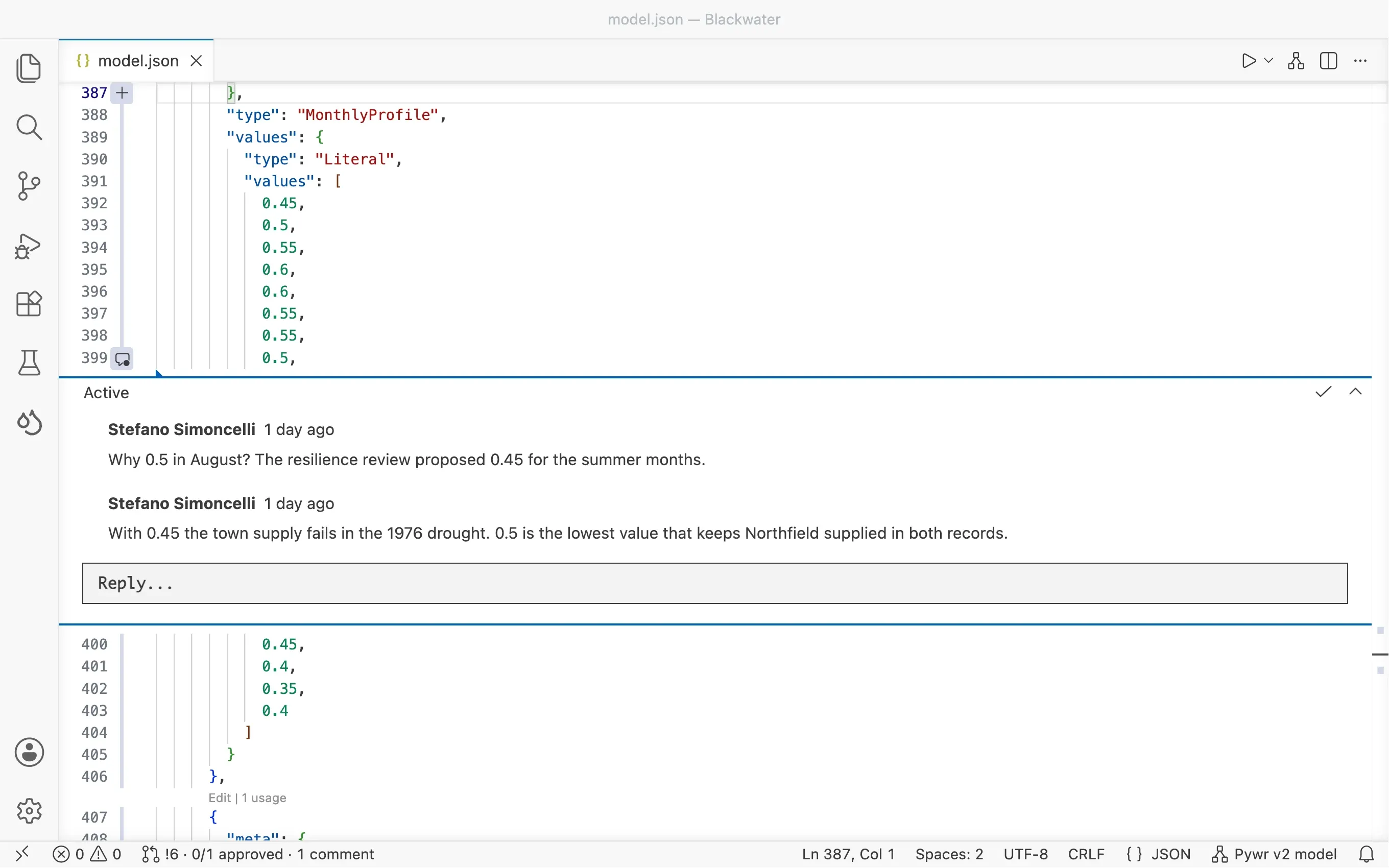
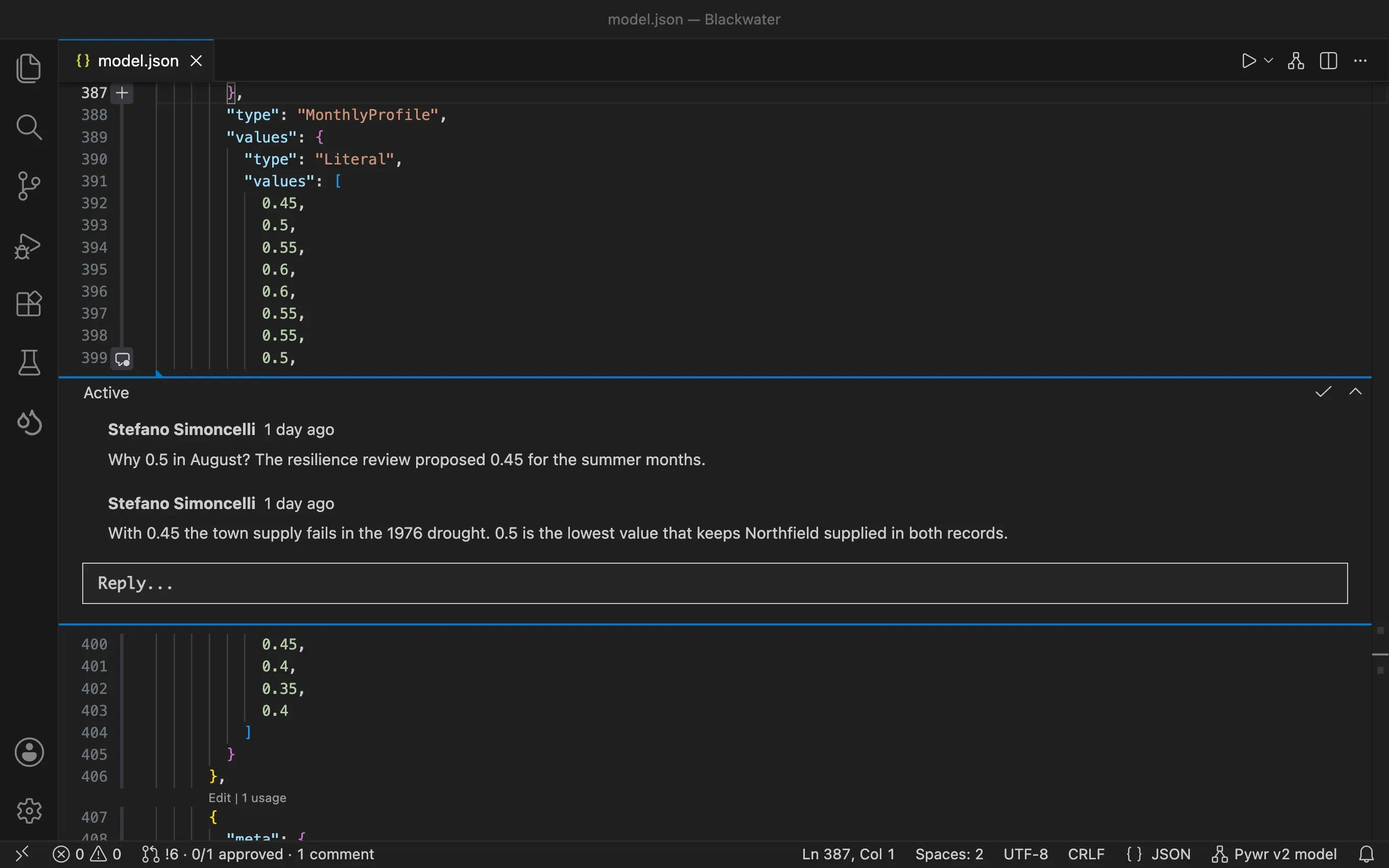
-
The modeller answers the comments and pushes the fixes with the Push button of the panel. The reviewers resolve the comments and approve from More actions.
-
When the panel shows Ready to complete, the pull request is completed from its … menu and the change is merged into the main branch. The pull request records who approved it and when.
Undo a change
Section titled “Undo a change”-
Find the change: the completed pull request on Azure DevOps, or the commit in the history of the main branch.
-
On Azure DevOps, open the completed pull request and select Revert. This creates a branch that undoes it, and a new pull request for it, which goes through the same policies as any other change.
You can also run git revert on the commit and create a pull request from the branch
with Pywr: Create a pull request. Either way the original change stays in the
history, next to the change that undid it.
Pywr for VS Code and Pywr for Azure DevOps are developed and maintained by Stefano Simoncelli.