
You can run the model from the schematic and watch it one time step at a time, without a results file. This helps to find where the network is constrained and when a demand is not met.
Start a live run
Section titled “Start a live run”-
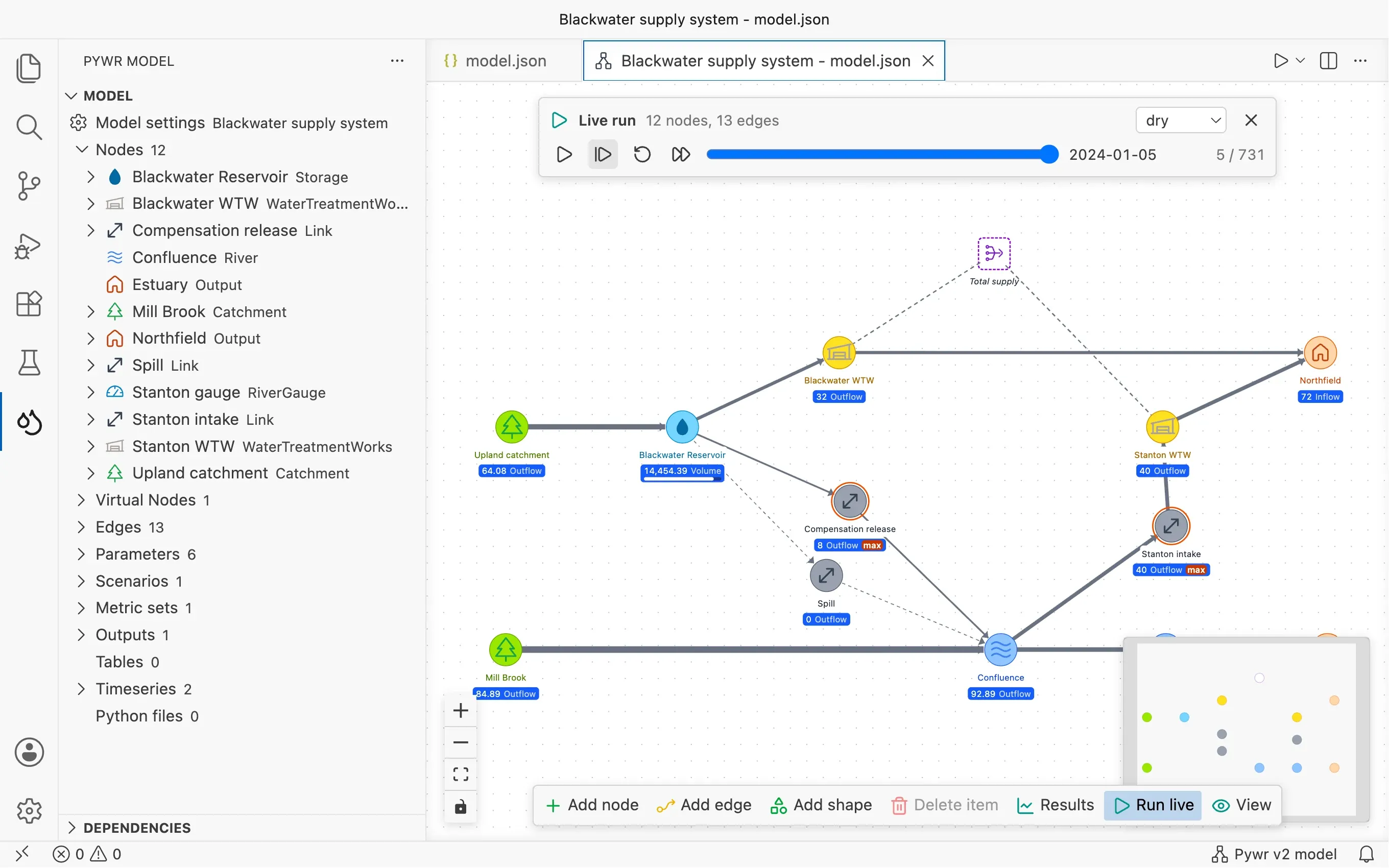
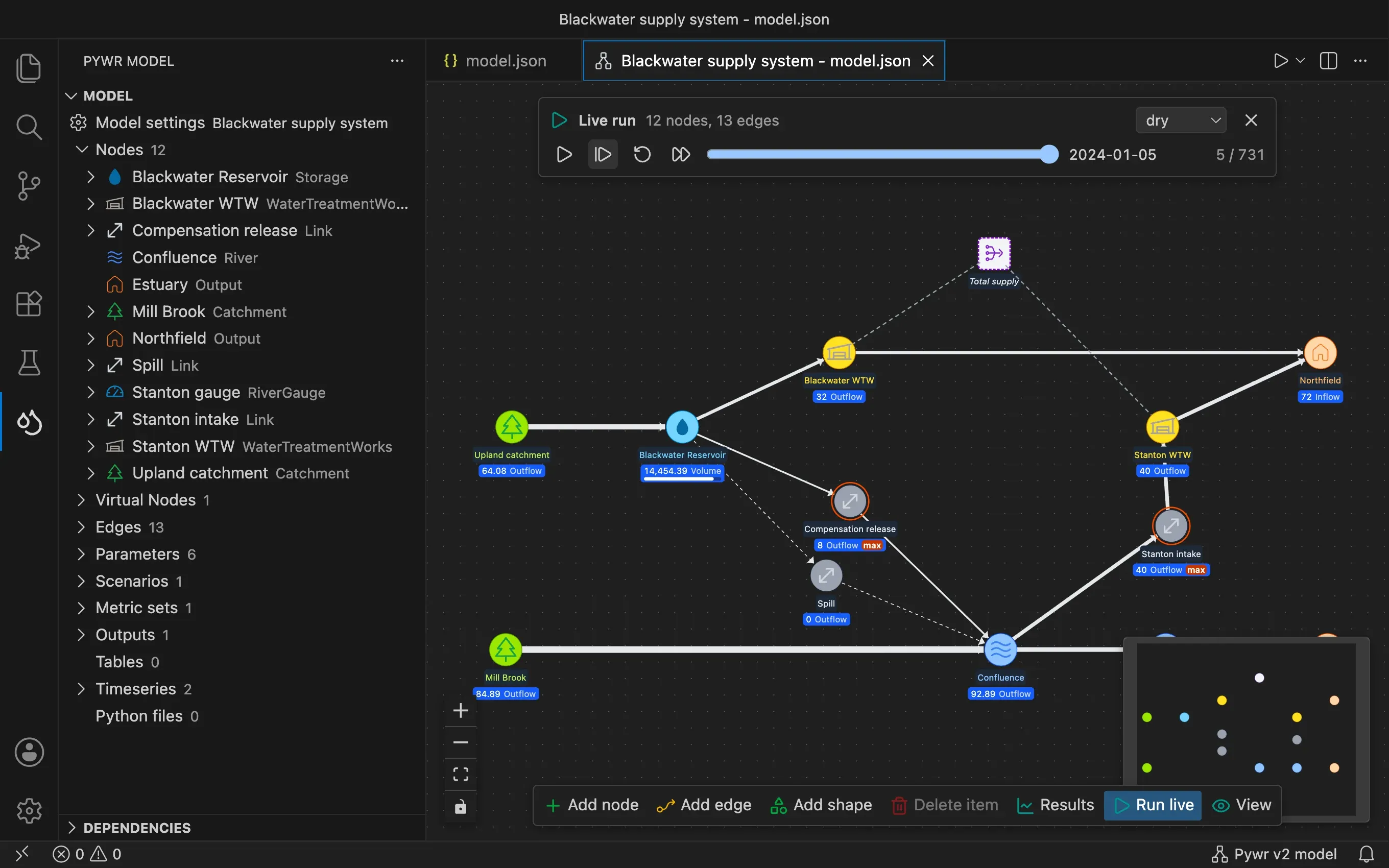
Open the schematic and press Run live in the toolbar. The model is saved and loaded with the Python environment selected in the Python extension, and its first time step is simulated.
-
Use the bar at the top to move through the run:
- press Simulate the next time step to advance by one time step
- press Play to simulate the time steps one after the other, and Pause to stop
- press Run until a condition is met to simulate the time steps until something happens (see Run until a condition)
- drag the slider to go back to a time step that was already simulated
- click a red tick above the slider to jump to a simulated time step where an output node has a deficit
- pick the scenario: all the scenarios are simulated together
- press Start the run again to go back to the first time step
- press Stop the run to go back to the plain schematic
-
Read the network:
- Each node shows its flow. Each storage node, aggregated storage and virtual
storage shows how full it is, as a percentage of its maximum volume
(
current_pcin Pywr v1,ProportionalVolumein Pywr v2). - A node with an orange outline and the label max has reached its maximum
flow (
max_flow): the node limits the flow in the network. - A grey node with the label blocked has a maximum flow of zero: the route through the node is blocked.
- An output node with a red outline and the label deficit gets less than its maximum flow: its demand is not met. The label has the deficit, which is the flow the node misses to get its maximum flow. An output node that gets its maximum flow has no outline.
- The flows of the solver are not exact: a flow that differs from its maximum flow by less than 0.001, in the flow units of the model, counts as equal to it. A node is then at its maximum, and an output node has a deficit (and a red tick on the slider) only when the deficit is larger than 0.001.
- Pywr v2 Edges get wider as their flow grows, and are dashed when the flow is zero.
- Hover a node to see a small chart of its values in the time steps simulated so far, with a marker at the time step shown.
- Each node shows its flow. Each storage node, aggregated storage and virtual
storage shows how full it is, as a percentage of its maximum volume
(
A live run does not save any results: the outputs of a Pywr v2 model and the CSV and tables recorders of a Pywr v1 model are not used. To save the results, run the model. A live run uses the model as it is saved and ignores the options of Run the model with options….
Catchments have no outline, as their flow is always the flow they are given. In Pywr v2 models, the outline is shown for the input, link, output, loss link and water treatment works nodes.
Watch parameters
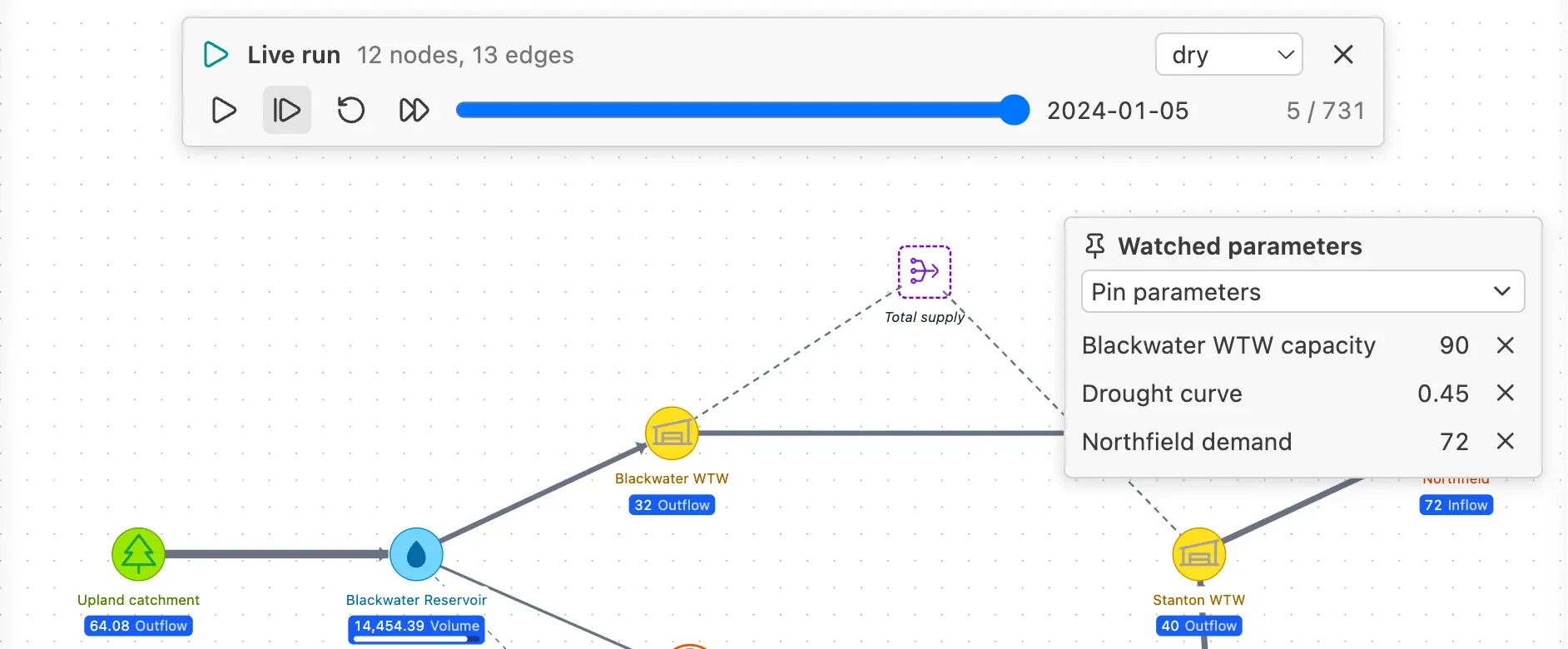
Section titled “Watch parameters”Pin the parameters, such as a control curve, the index of a control curve or a licence, to see their value at each time step next to the schematic.
-
Start a live run. The Watched parameters panel opens on the right of the schematic.
-
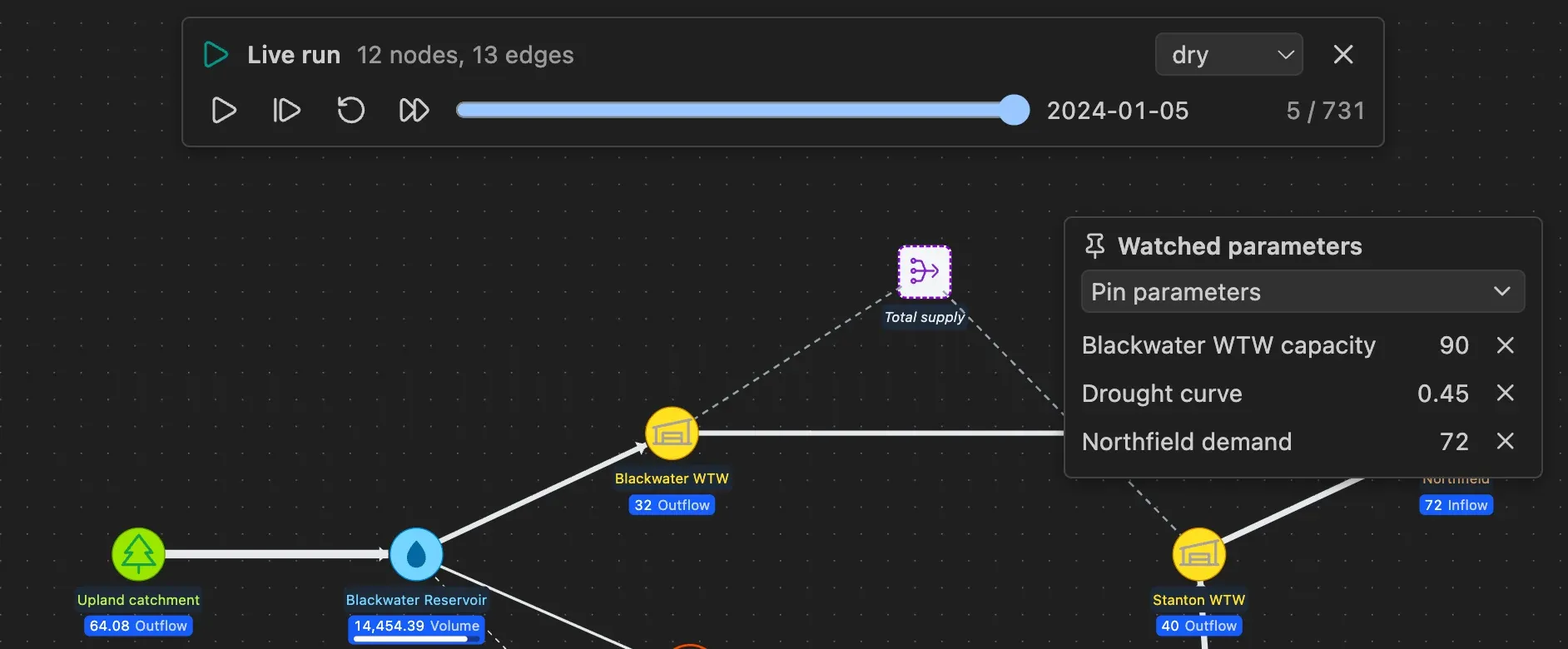
Press Pin parameters and tick the parameters to watch. Type in Search… to filter a long list. The panel shows the value of a ticked parameter straight away. Press Esc, click the schematic or press the cross next to the search box to close the list.
-
Move through the run: the panel shows the value of each pinned parameter at the time step and in the scenario shown in the bar. An index parameter shows its index. Hover a parameter to see a small chart of its values in the time steps simulated so far, with a marker at the time step shown. Press the cross next to a parameter, or untick it in the list, to unpin it.
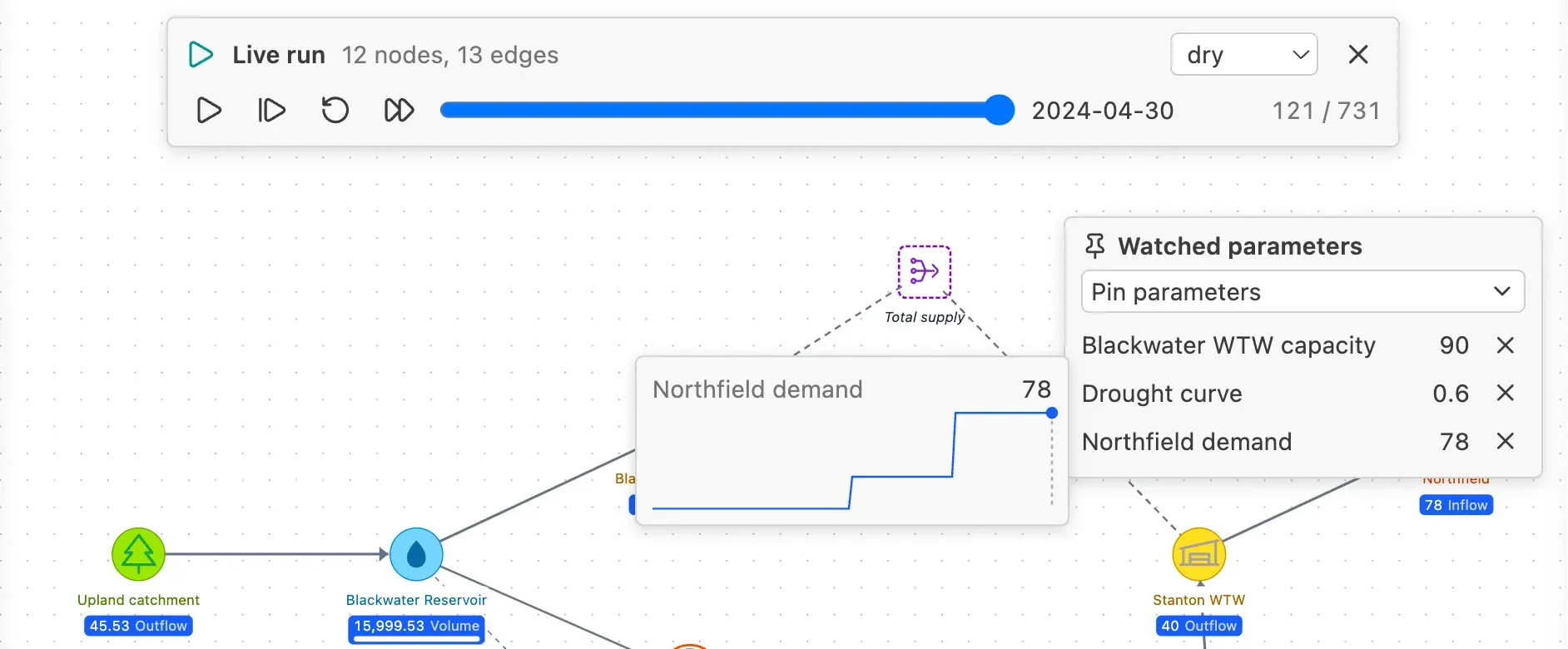
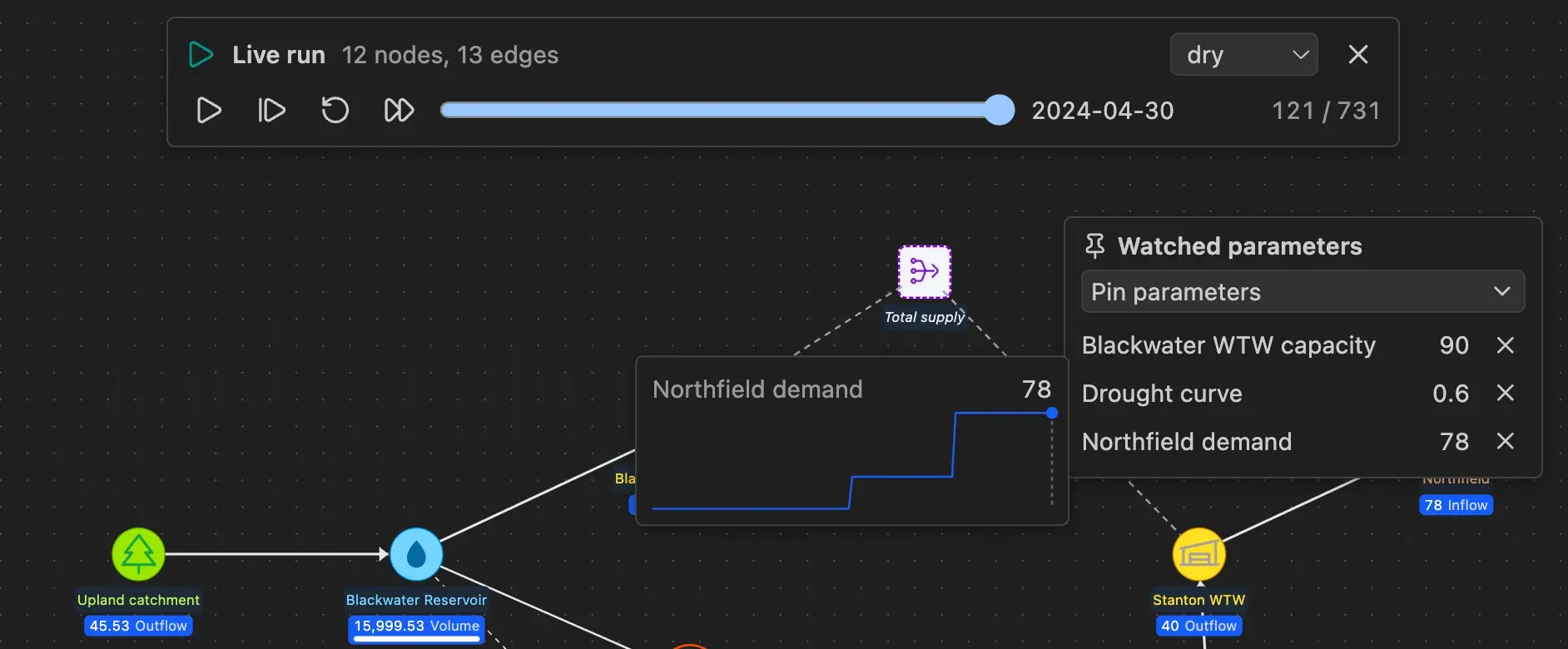
When you pin a parameter in the middle of a run, the panel shows a dash at the earlier time steps, because only the last simulated time step is read again. Press Start the run again to get its value from the first time step. Pinned parameters stay pinned when you start the run again or start a new live run of the same model.
You can pin any parameter with a name, except a Python parameter that returns a dictionary in a Pywr v2 model.
In a Pywr v2 model, a parameter can calculate its value before the network is solved, after it, or both. When it has both, the panel shows the value calculated before, which is the one the time step used.
Compare the node costs along a route
Section titled “Compare the node costs along a route”Pywr v1 In a live run, the Node costs panel on the left of the schematic sorts the route of the selected node by cost, so you can see which nodes the solver prefers.
-
Start a live run and simulate at least one time step.
-
Click a node. Its route is coloured on the schematic, and the panel lists the node (in bold), the nodes upstream of it (green dot) and the nodes downstream of it (red dot), from the lowest cost to the highest. A negative cost is a benefit, so the most wanted nodes come first. Pick By route in the panel to list the nodes in the order of the route instead: the upstream nodes from the farthest to the nearest, the selected node, then the downstream nodes. Hover a node in the panel to see a small chart of its cost in the time steps simulated so far.
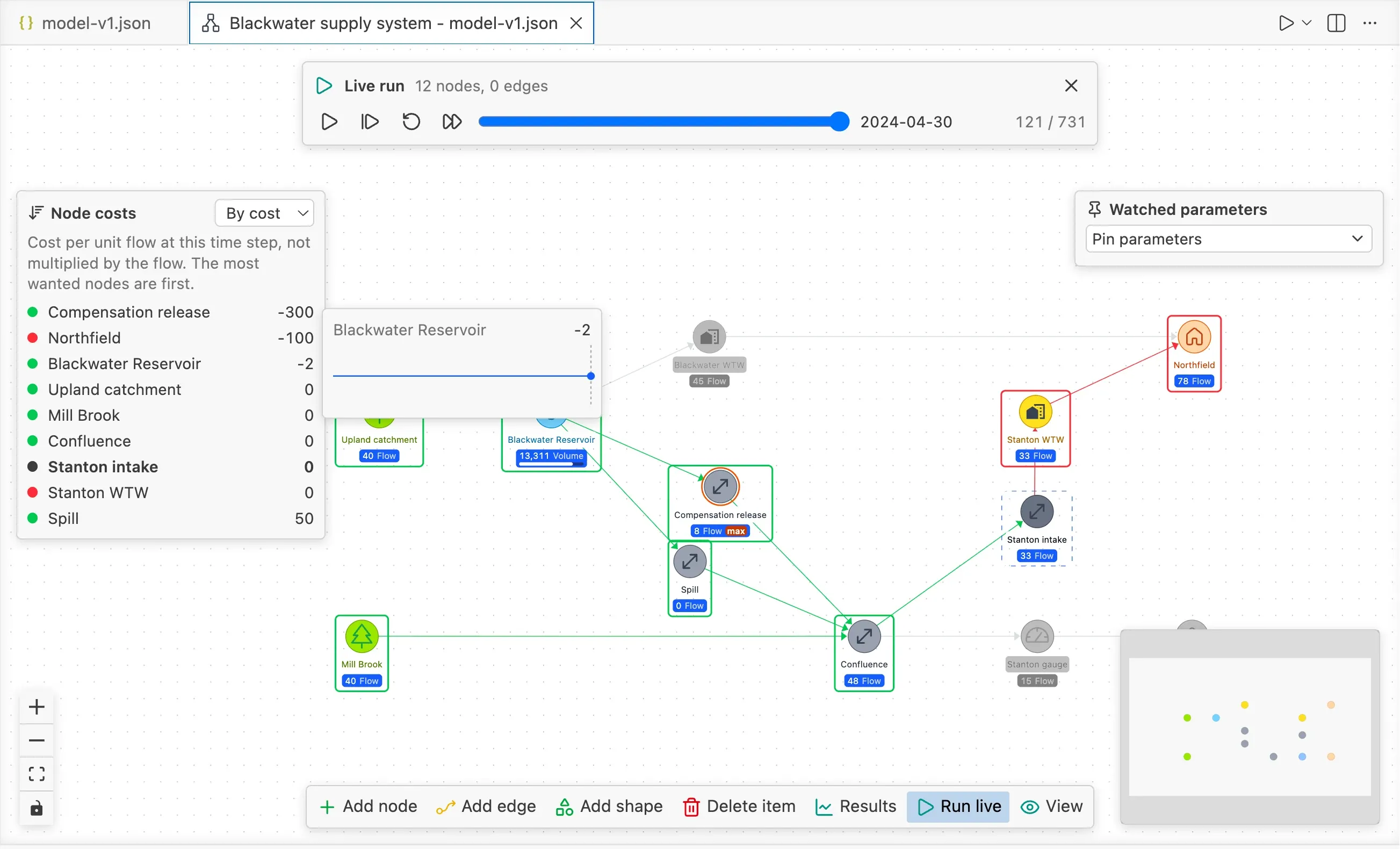
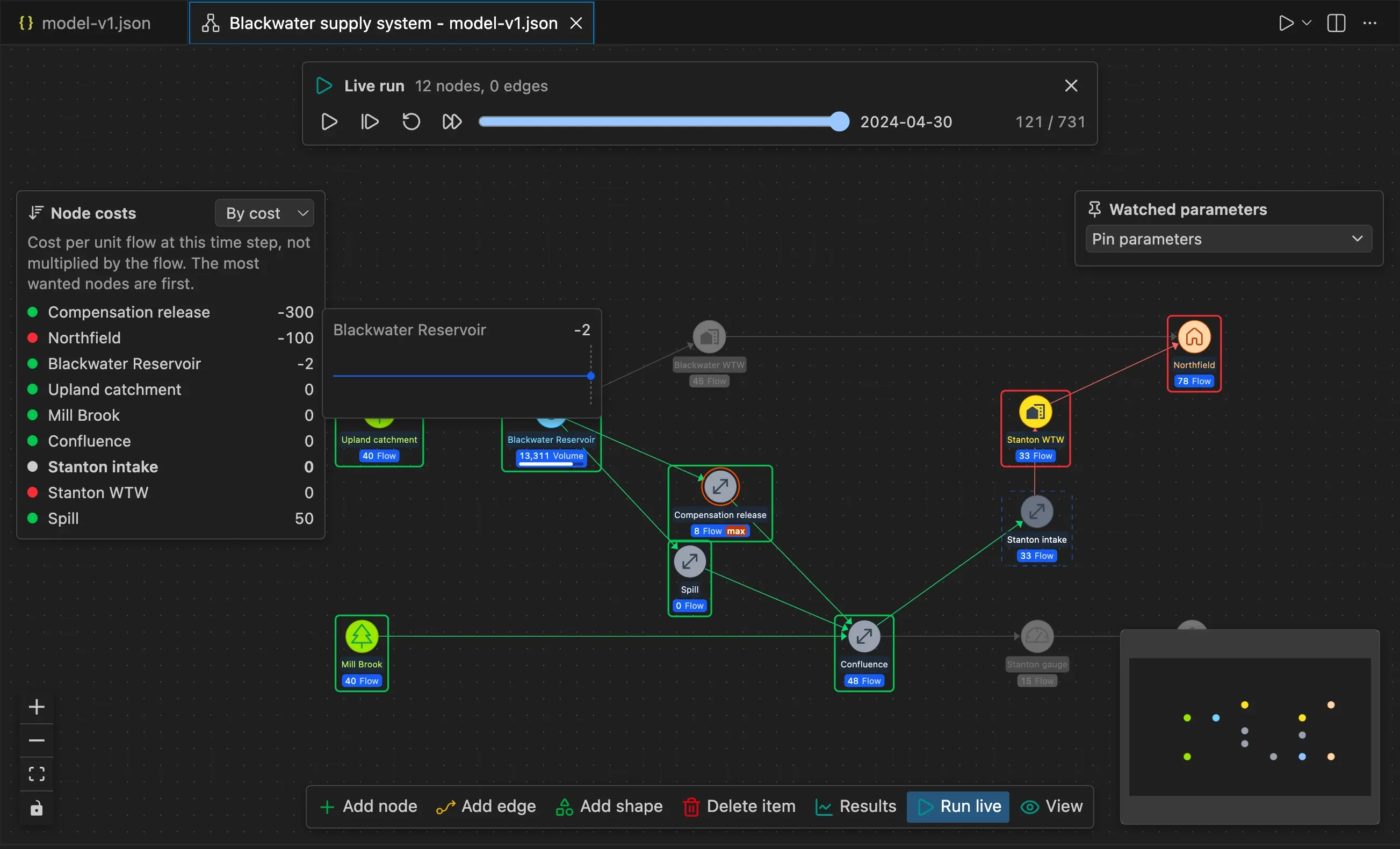
The costs are the ones Pywr uses at the time step and in the scenario shown in the bar, so a cost set with a parameter, such as a control curve, can change from one time step to the next. Each cost is per unit of flow through the node and is not multiplied by the flow. A node without a cost shows a dash and is listed last.
A node with a cost for each band of its flow, such as a PiecewiseLink, a RiverGauge
or a RiverSplit, shows the cost of its cheapest band, which the solver fills first.
For a RiverGauge, this is usually the mrf_cost of the minimum residual flow. Hover
the info icon next to the cost to see the cost of each band. A LossLink shows the cost
of its net flow.
Run until a condition
Section titled “Run until a condition”To find when a demand is first not met or a reservoir runs low in a long run, let the live run simulate the time steps on its own and pause on the first one where it happens.
-
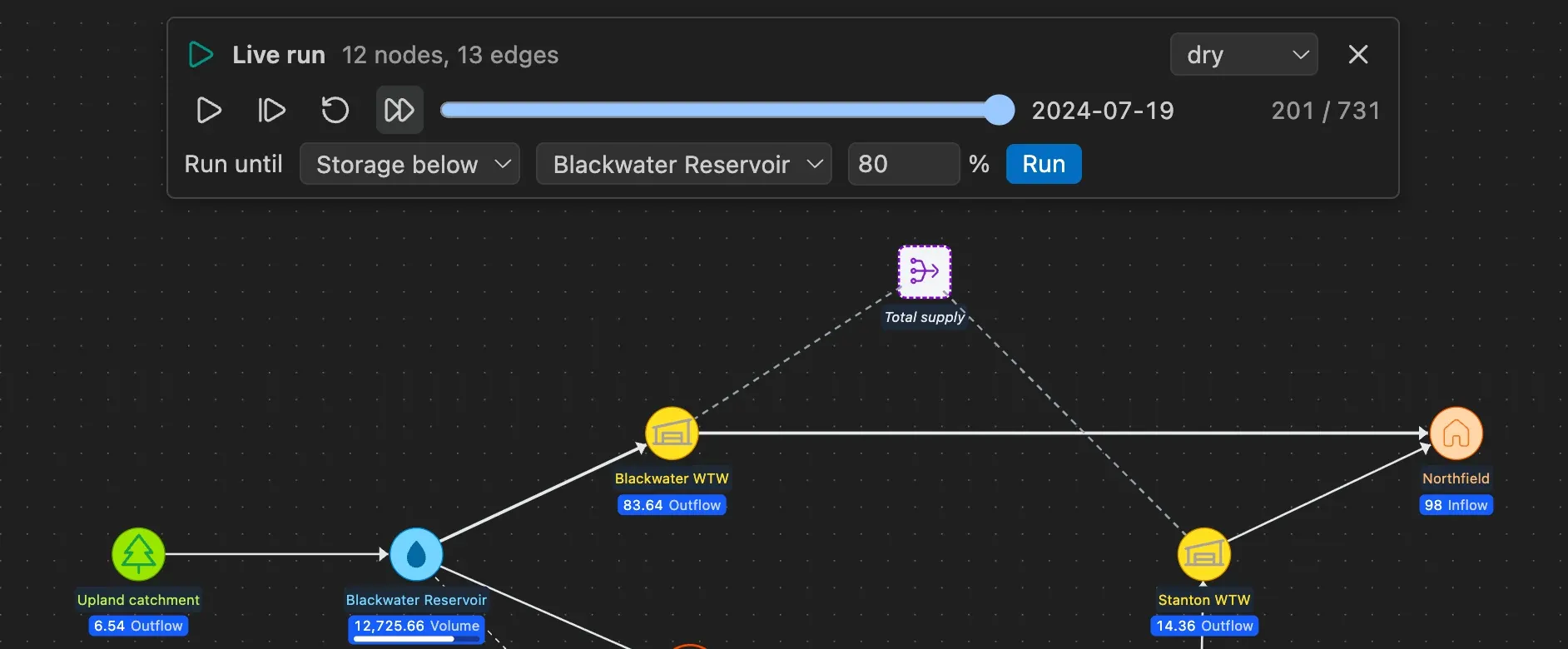
Start a live run and press Run until a condition is met (the fast-forward button) in the bar at the top. A row opens under the buttons.
-
Pick the condition and fill in its value:
Condition Pauses on the first time step where Deficit at the output node picked gets less than its maximum flow (its demand), by more than 0.001 Storage below the volume of the storage node picked is below the percentage given of its maximum volume Date the time step starts on or after the date picked 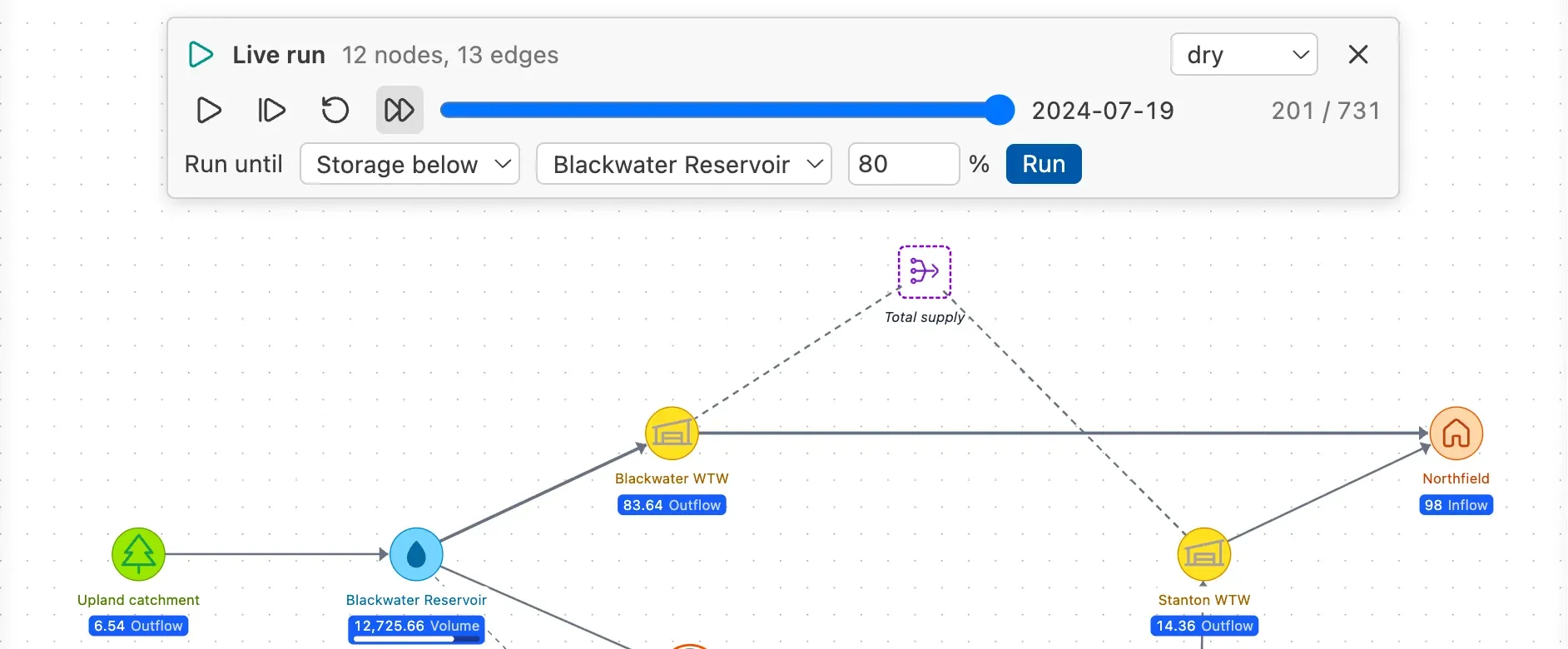
-
Press Run. The run simulates the time steps one after the other, pauses on the first one that meets the condition and shows it on the schematic. Press Pause to stop earlier.
The run checks the condition in the scenario shown in the bar. Each Run starts from the last simulated time step, so pressing it again finds the next time step that meets the condition. When no time step meets it, the run stops at the last time step and the bar says that the condition was not met. The condition is checked for the selected scenario.
Pywr for VS Code and Pywr for Azure DevOps are developed and maintained by Stefano Simoncelli.