
Once the workspace folder is connected to Azure DevOps, you work on the pull request of your branch in the Pull request panel of the Pywr sidebar. The panel shows its state and what it changes in each model. From there you comment, vote and complete it, or create one when the branch has none. The folder must be cloned from the repository of the connection.
The Pull request panel
Section titled “The Pull request panel”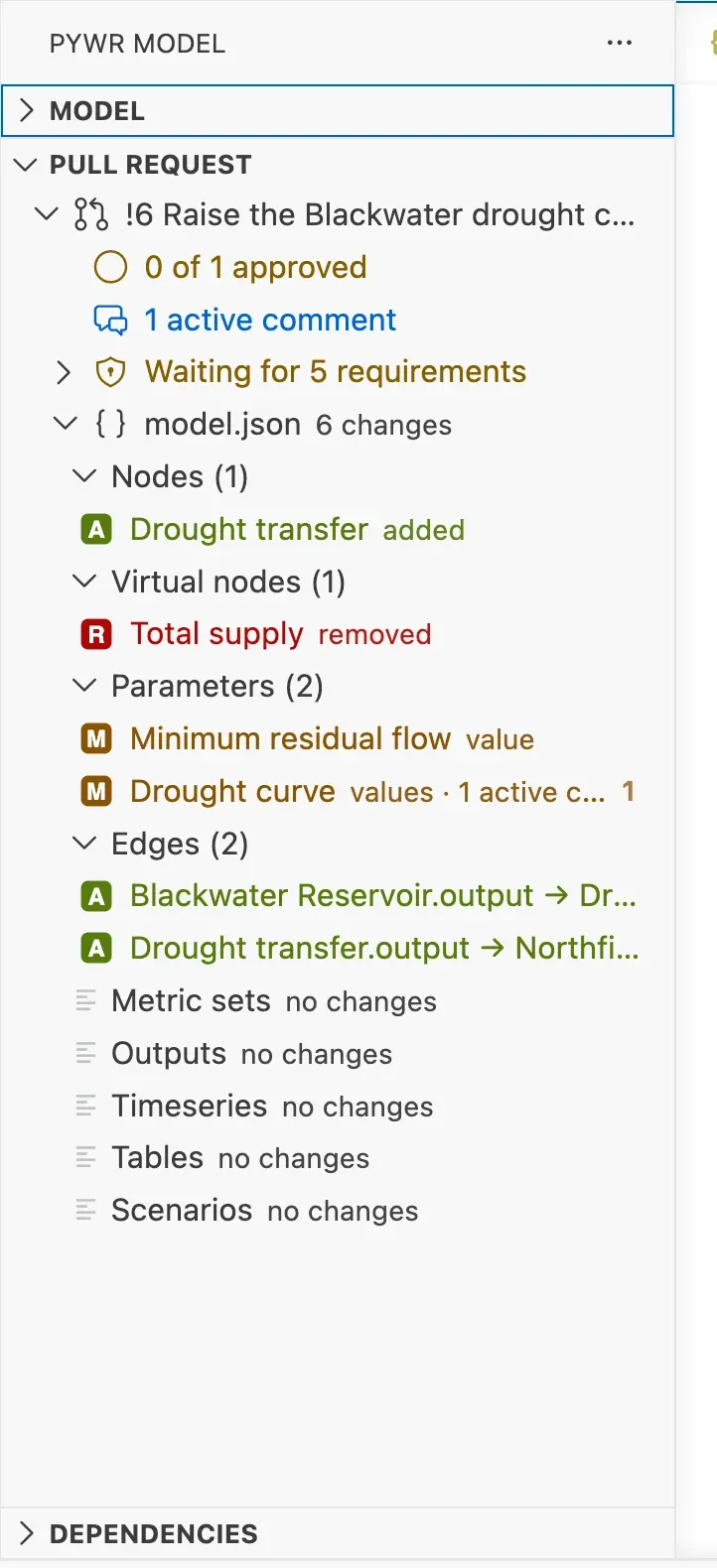
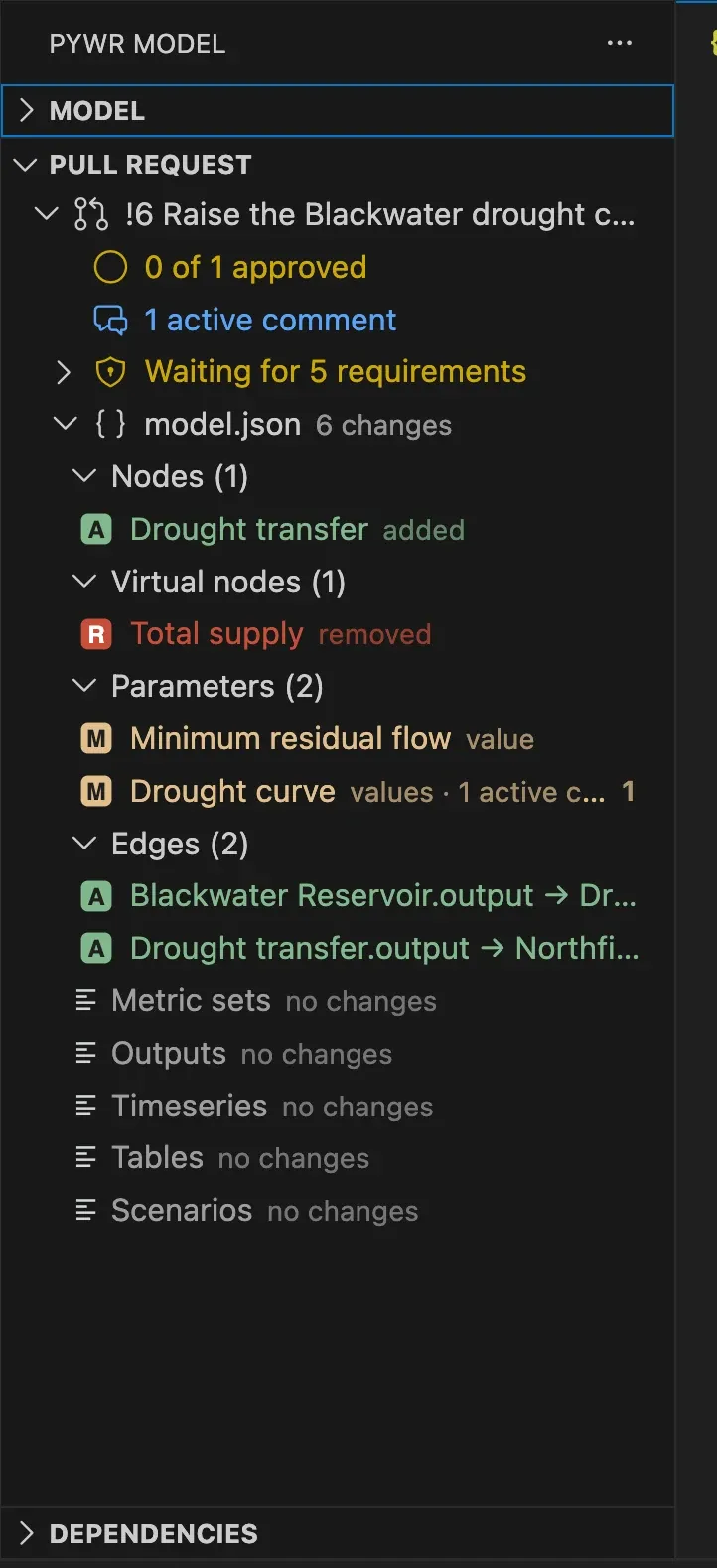
Under the title of the pull request, the panel shows:
- How many reviewers approved it, its active comments, and what it still waits for before it can be completed. Expand a line to see the details.
- The files you changed and did not commit, as uncommitted changes. They are not in the pull request, so the panel and the schematic do not mark them as changes. Select a file to open it.
- A warning when the branch you merge into has commits that your branch does not have, for example main has 3 new commits. Merge it into your branch to bring the branch up to date. When Azure DevOps finds that the branches conflict, the line says Conflicts with main.
- Each model it changes, with its nodes, virtual nodes, edges, parameters and the other types of components. The types with no change are listed after the changed ones. A component has the letter A when the pull request adds it, M when it modifies it and R when it removes it, and the number of active comments on its lines.
- Other files, with the data files and the other files it changes.
The buttons at the top of the panel act on the pull request. Hover over one to see its name:
| Button | What it does |
|---|---|
| Pull | Brings your branch up to date with the commits pushed by others. |
| Push | Sends your commits to Azure DevOps, so that they are part of the pull request. |
| Open in the browser | Opens the pull request on Azure DevOps. |
| More actions | Votes and the other actions on the pull request. |
| Refresh | Reads the pull request and its changes again from Azure DevOps. |
| … | Complete…, Policies and Link work items, also found under More actions. |
When your branch has no pull request yet, the panel offers to create one. When the folder is a clone of an Azure DevOps repository that is not connected yet, it offers to connect it.
The panel is updated when you switch branch, commit or push, after you vote, resolve
or reactivate a comment, or create a pull request, and every minute while the VS Code
window has the focus. Change how often with the pywr.pullRequests.refreshInterval
setting, in minutes. Pywr: Refresh the pull request in the Command Palette does the
same as the Refresh button.
Review the model changes
Section titled “Review the model changes”Select a node or an edge in the panel to show it on the schematic. Select any other component to compare it before and after the pull request. Right-click a component for more:
| Action | What it does |
|---|---|
| Edit | Opens the form of the component. |
| Go to JSON | Opens the model on the first line of the component. |
| Show the change | Compares the component before and after the pull request. |
| Show the comments | Opens the model on the comments of the component. |
| Comment on this component | Starts a comment thread on the first line of the component. |
On the schematic
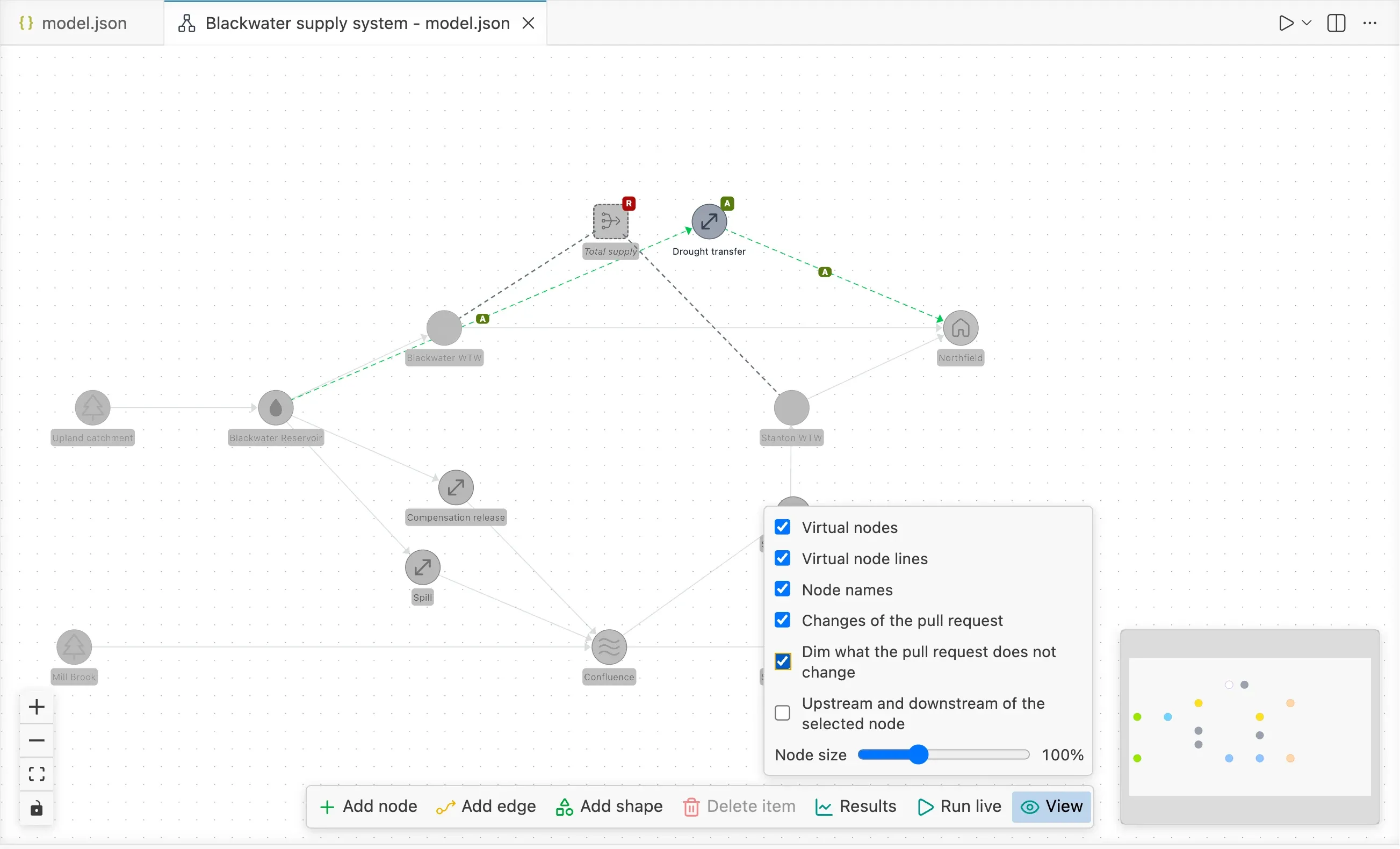
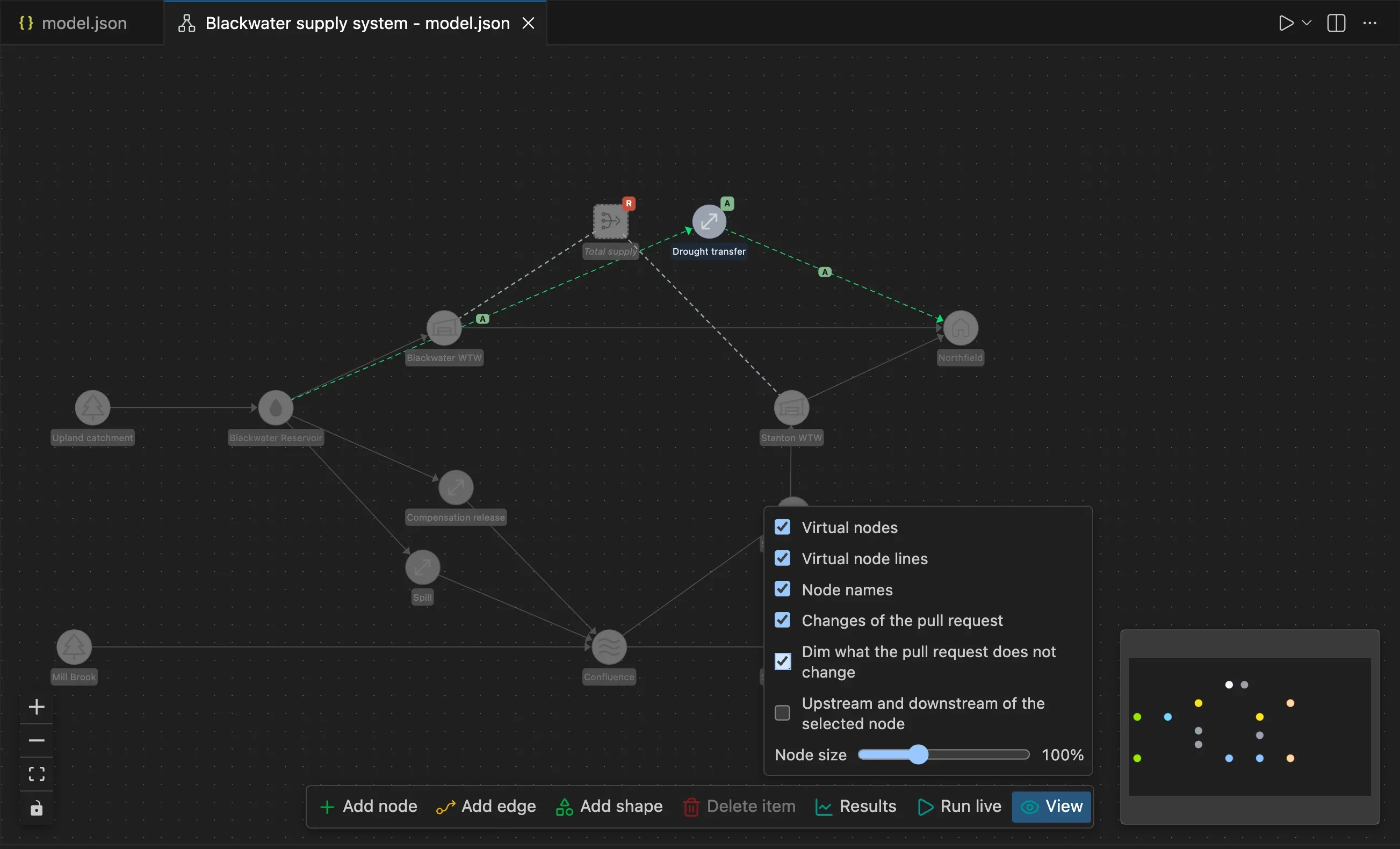
Section titled “On the schematic”The schematic of a model that the pull request changes marks the nodes and the edges it adds, modifies or removes, with the same letters as the panel.
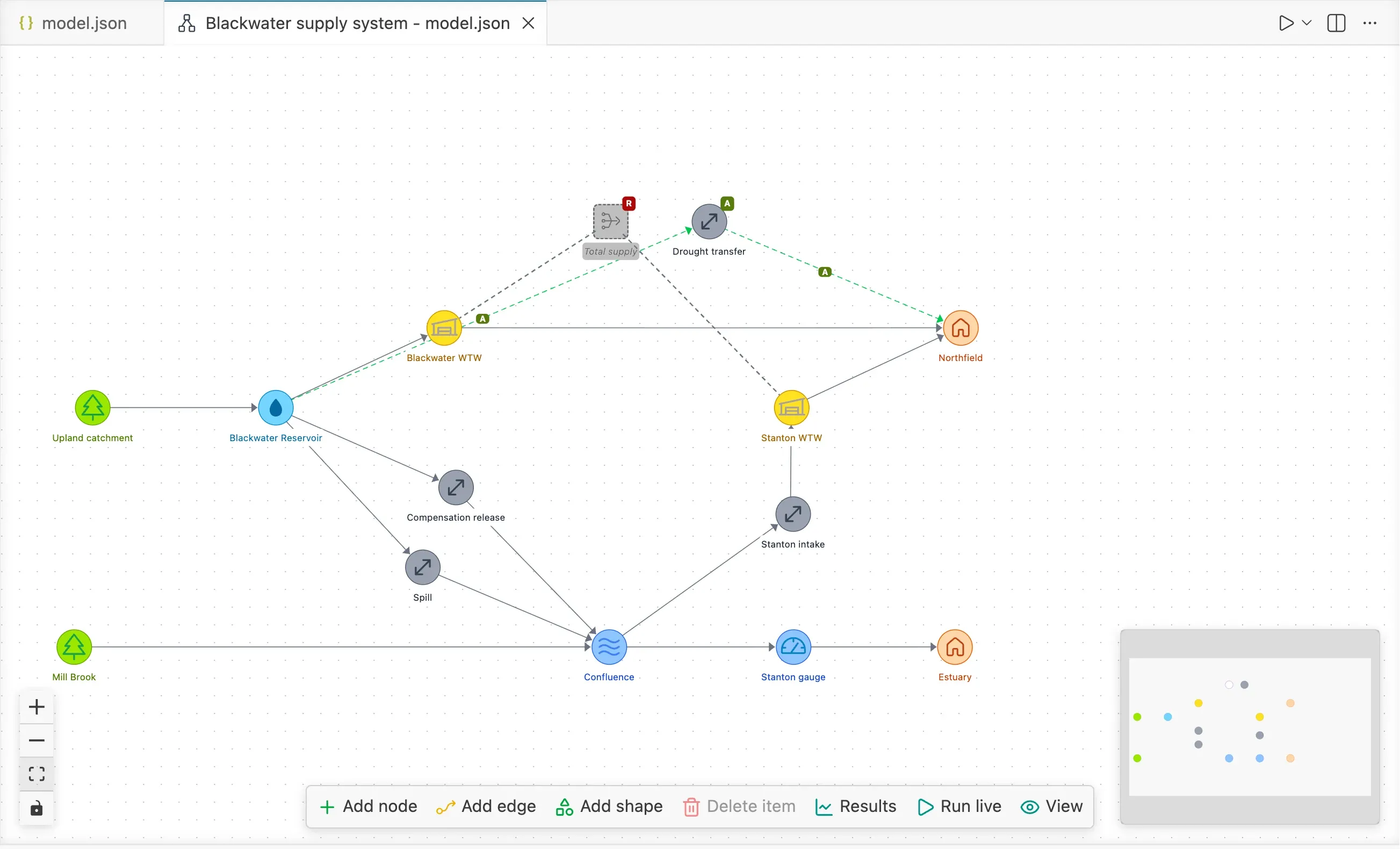
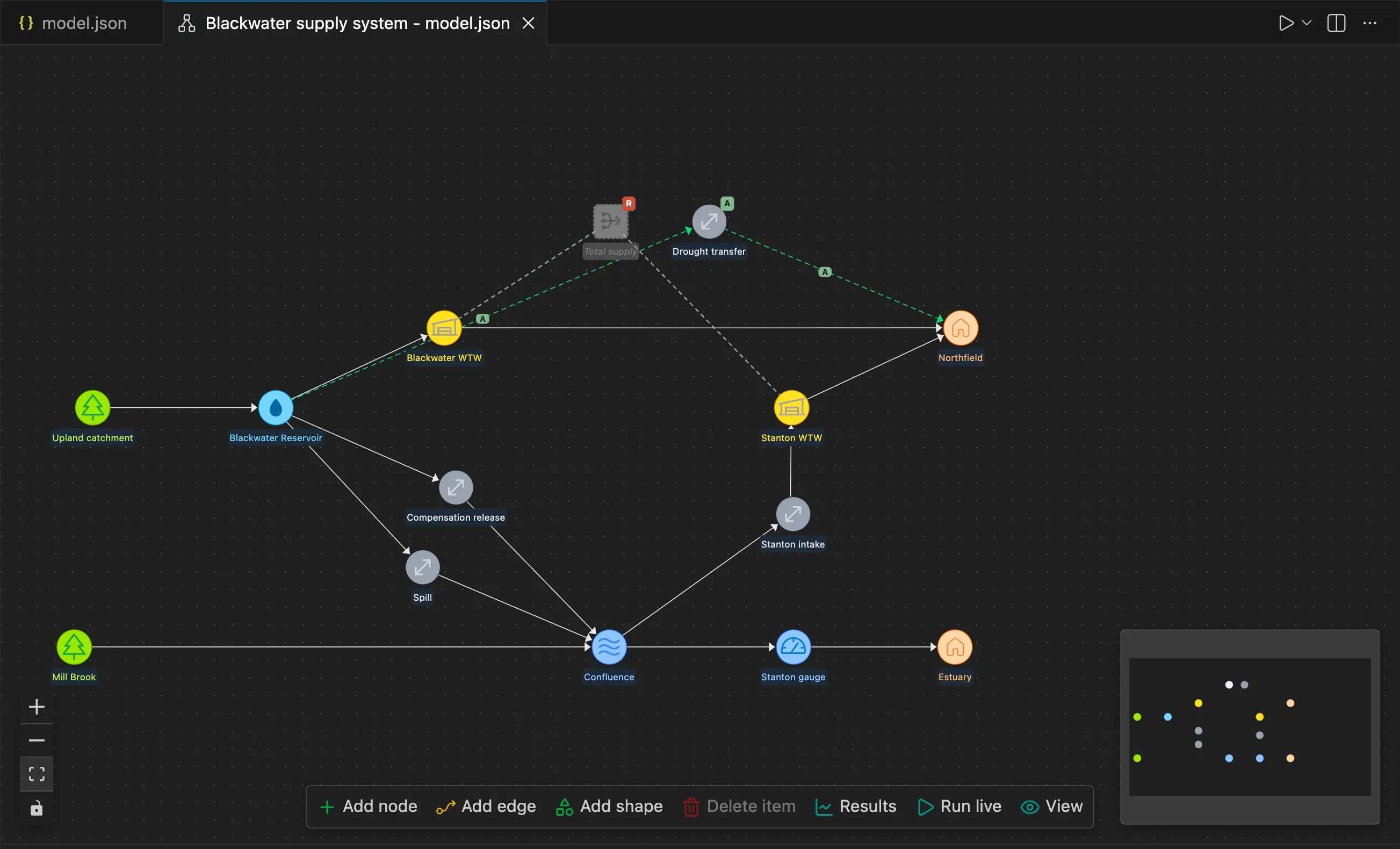
- The new edges and those removed are dashed. Hover over an edge to see its name.
- The nodes and the edges that the pull request removes are drawn faded from the version of the model before it. You cannot select or move them.
- In the View options of the toolbar, untick Changes of the pull request to hide the marks and what was removed. Tick Dim what the pull request does not change to see which part of the network it touches.
Comments
Section titled “Comments”In the panel, select the comment icon next to a component to open the model on its comments, or the + icon to start a thread on it.
The comments of the pull request of your branch are shown on their lines in the editor, and listed in the Comments panel. Active threads are open; resolved ones are closed and marked as resolved.
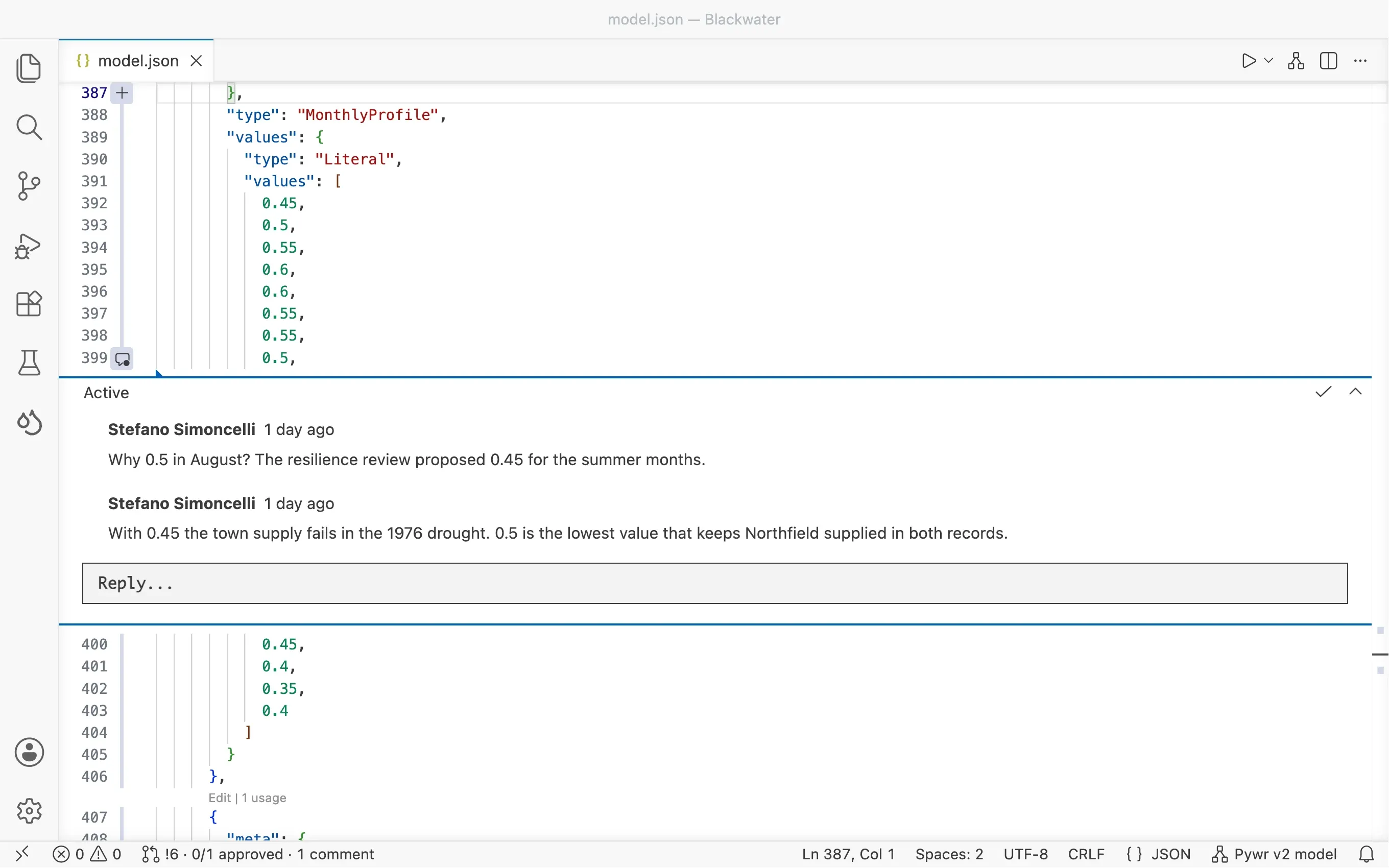
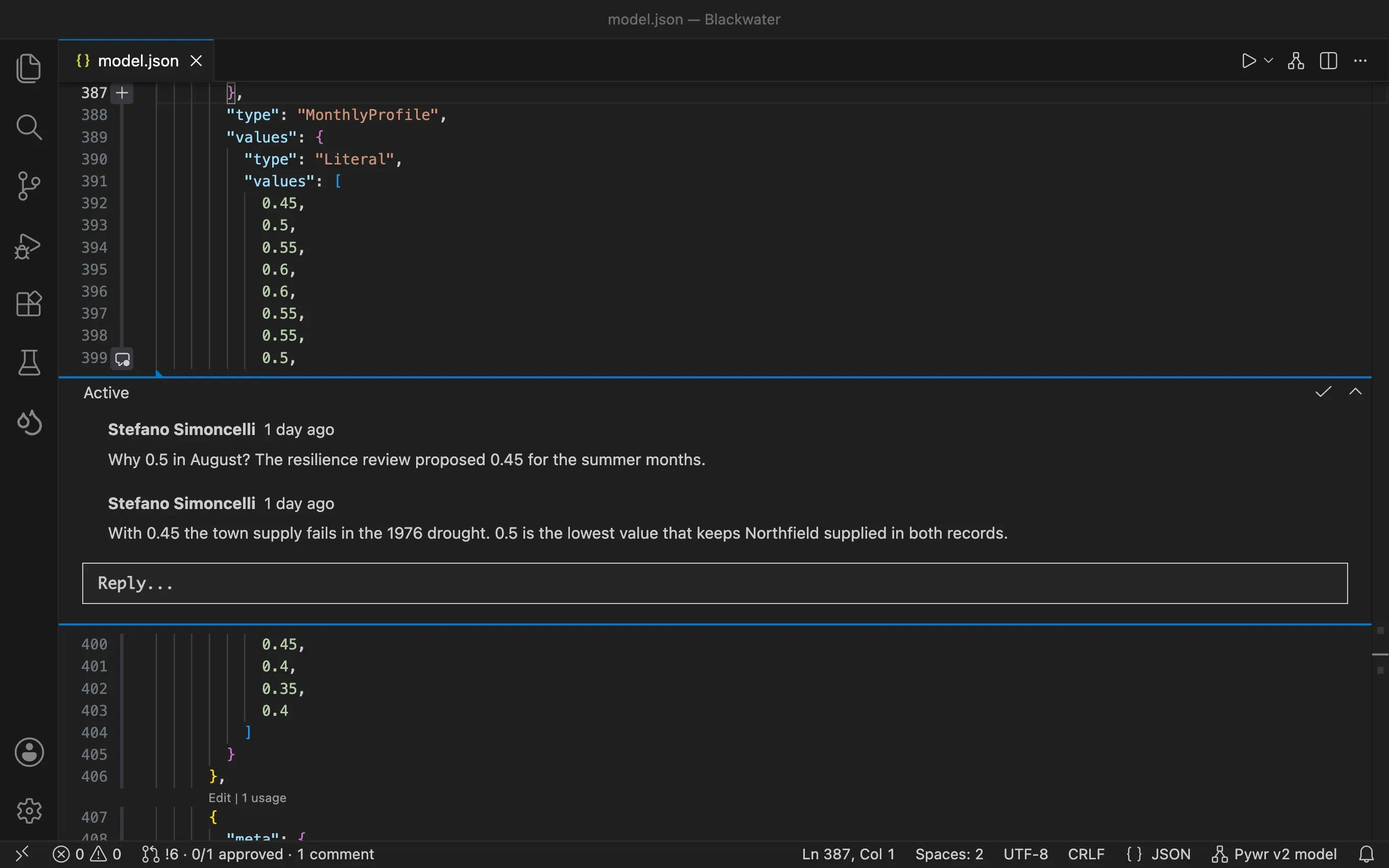
- Reply in a thread and select Comment.
- Select Resolve at the top of a thread when it is answered, or Reactivate to open it again.
- To start a thread, hover over the line numbers of a file the pull request changes and select the +. You can select several lines first.
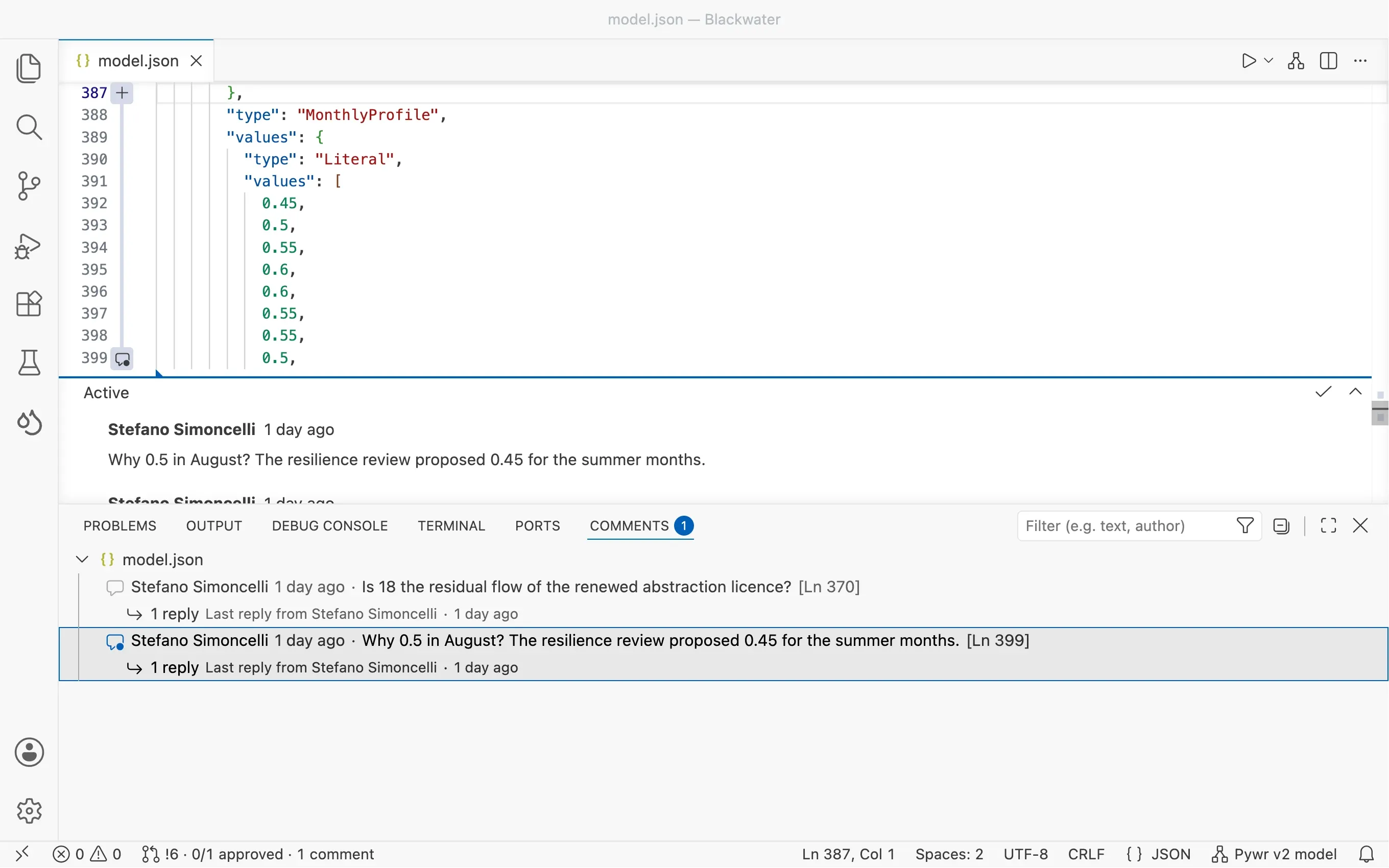
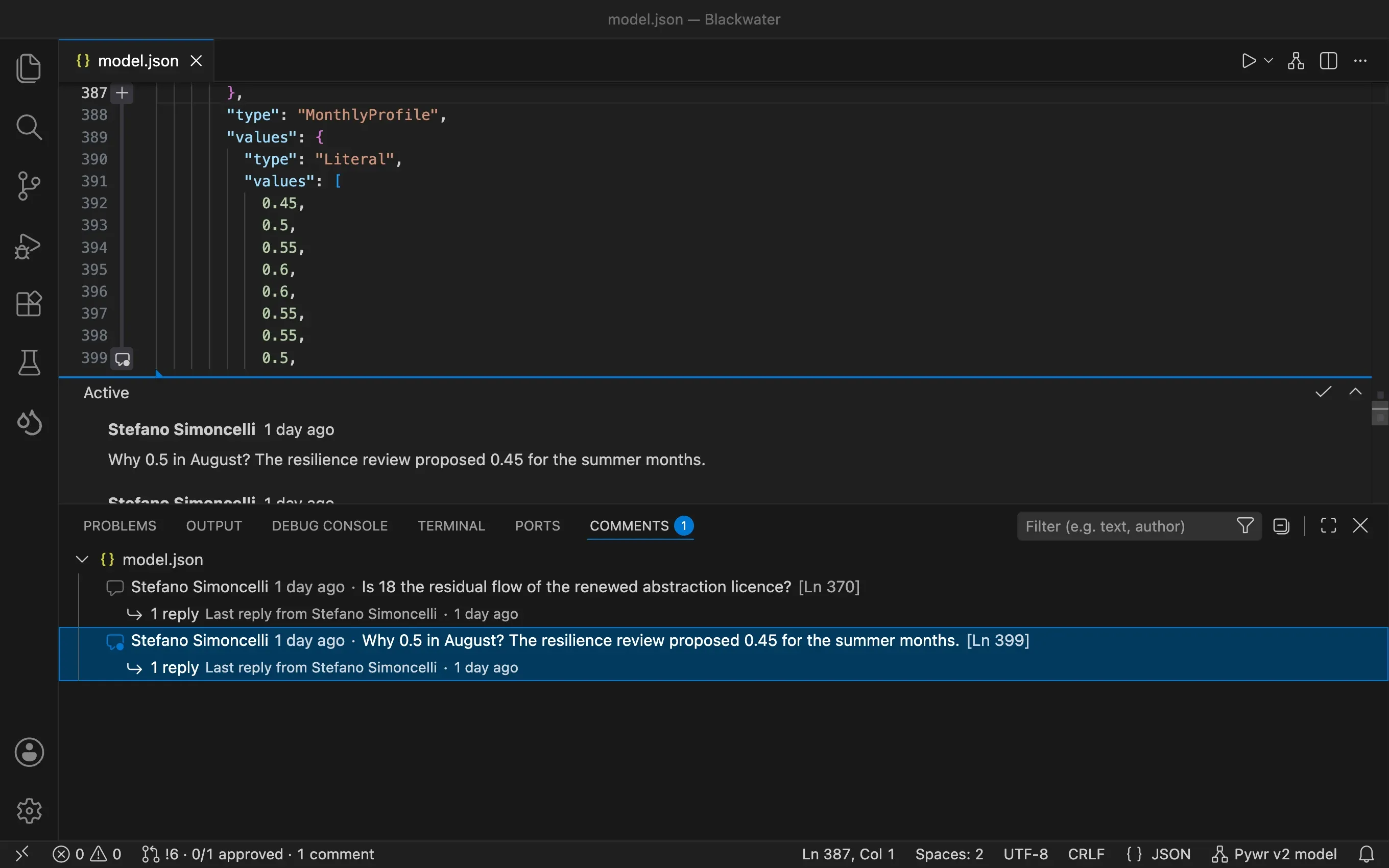
The lines of the comments are those of the last push. If you change the file and do not push the change, the comments can point to the wrong lines until you push.
The comments on the whole pull request, and those on lines it removed, are only shown in the browser.
Vote and complete
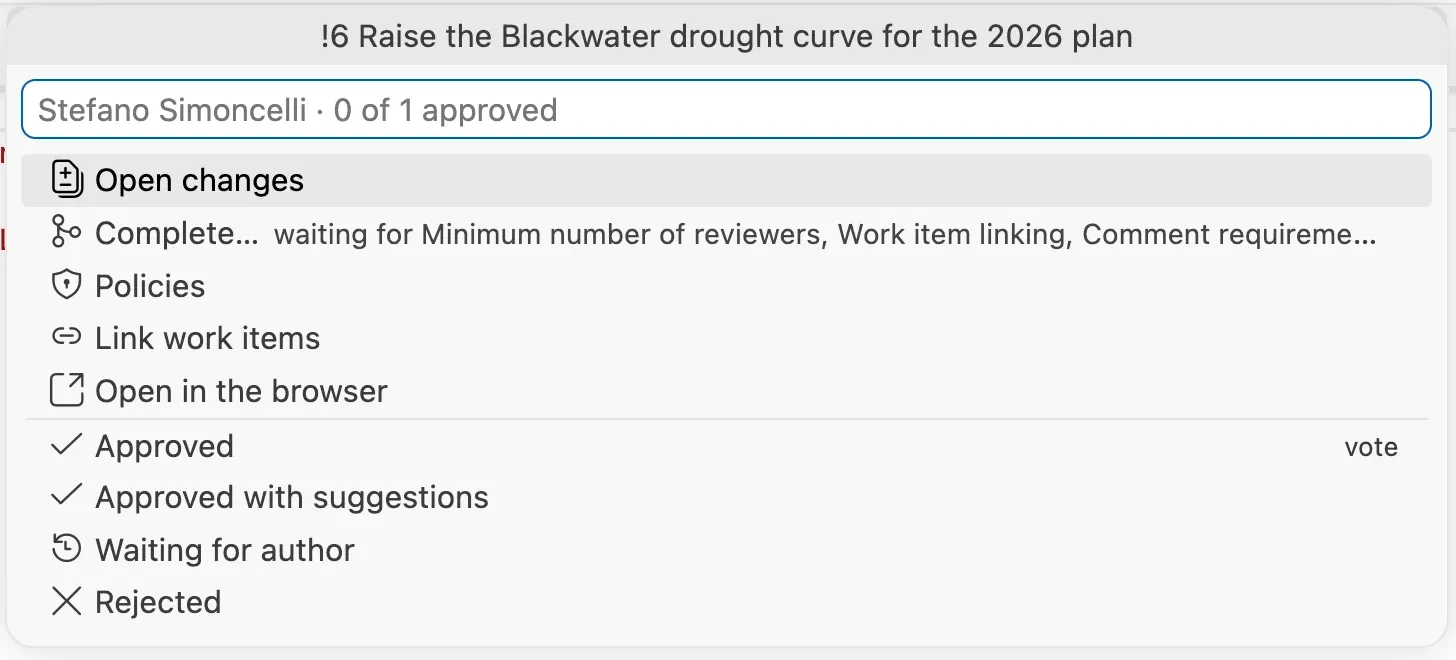
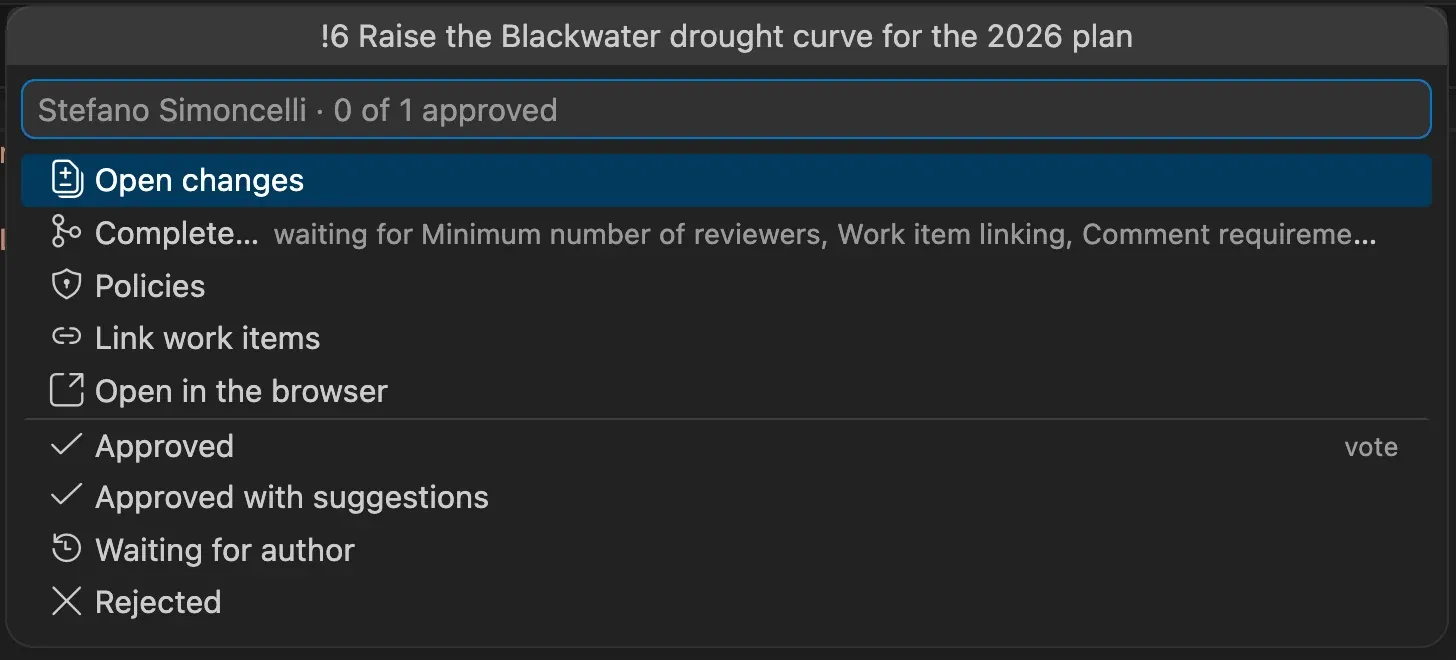
Section titled “Vote and complete”Select More actions at the top of the panel to see what you can do with the pull request. The same list opens when you select the pull request in the status bar.
| Action | What it does |
|---|---|
| Open changes | Fetches its branches and shows every file it changes in one editor, with the old version on the left and the new one on the right. |
| Check out | Shown for a pull request of another branch. Switches to its branch. A branch checked out before is brought up to date. When your copy of the branch has commits that are not in the pull request, they are kept and you are told so. |
| Complete… | Merges it, in the steps below. Next to it, what it is still waiting for, or ready to complete. |
| Policies | Lists the branch policies of the pull request and whether each one is met. |
| Link work items | Searches the work items of the project and links the ones you pick. |
| Open in the browser | Opens the pull request on Azure DevOps. |
| The votes | Approved, Approved with suggestions, Waiting for author, Rejected, or Reset my vote. Your current vote is marked. |
To complete the pull request, pick Complete…, or select it in the … menu of the panel:
-
If required policies are not met, or required reviewers have not approved yet, the message lists them. You can set the pull request to complete on its own as soon as nothing is missing.
-
Pick how to merge: a merge commit, a squash commit, a rebase or a semi-linear merge. Only the ways the policies of the target branch allow are listed.
-
Choose whether to delete the branch after merging and whether to complete the linked work items. Both are ticked.
-
Check the message of the merge commit. A rebase has none.
A draft cannot be completed: publish it in the browser first. If someone pushed to the branch since you opened the actions, Azure DevOps refuses to complete it and says why.
Create a pull request
Section titled “Create a pull request”-
Check out the branch with your changes and select Create a pull request in the panel. You can also run Pywr: Create a pull request.
-
If Azure DevOps does not have your branch yet, or has other commits, you are asked to push it. A pull request only shows what is pushed.
-
Pick the branch to merge into. The default branch of the repository comes first.
-
Check the title. It starts as the message of your last commit.
-
Link work items, if you want: type the id or a word of their title. Before you type, the list shows the open work items assigned to you. Press Enter to go on.
-
Pick Ready for review, or Draft if the reviewers should not review it yet.
-
Write the description:
- Type a short description and press Enter to create the pull request.
- When the repository has a pull request template, press Enter without typing anything, or select the pencil, to fill in the template in an editor.
- Without a template, an empty description lists your commits.
- Select the pencil for a longer description written in an editor.
In the editor, write the description and select Create pull request at the top right of the editor. The editor closes when the pull request is created. Azure DevOps accepts up to 4000 characters.
The templates are found where Azure DevOps looks for them, in the default branch of the
repository: the template for the target branch first, then the default template, in the
.azuredevops, .vsts and docs folders and the root of the repository. When there are
other templates in a pull_request_template folder, you pick the one to use.
Reviewers required by the branch policies are added by Azure DevOps. To add other reviewers, open the pull request in the browser.
The status bar
Section titled “The status bar”When the branch you have checked out has an active pull request, the status bar shows it, for example !412 · 1/2 approved · 2 comments, with draft, waiting for author or rejected when they apply. Select it to see the actions of the pull request. It is updated with the panel.
- When the branch has several active pull requests, for example into
mainand into a release branch, the panel and the status bar show the newest one. - With several workspace folders, the panel and the status bar follow only the first folder connected to Azure DevOps. Use Pywr: Show pull requests for the others.
- When Azure DevOps rejects the token, for example after it expires, the status bar says Azure DevOps token rejected. Select it to give a new token.
- When the default branch is checked out and Azure DevOps has commits you have not pulled, the status bar says main is out of date. Select it to pull them before you start a new branch, so that its pull request does not conflict with them.
Other pull requests
Section titled “Other pull requests”To review a pull request of another branch, for example one you are asked to review, run Pywr: Show pull requests. The list has the active pull requests of the repository in three groups:
- waiting for my review: you are a reviewer and you have not voted yet;
- reviewed by me: you are a reviewer and you have voted;
- created by me: you opened them.
Each pull request shows its author, whether it is a draft, how many reviewers approved it, and your vote. The line under it has the branch it merges and the branch it merges into. The button on the right of a pull request opens it in the browser.
The first item, Create a pull request from your branch, starts a new pull request.
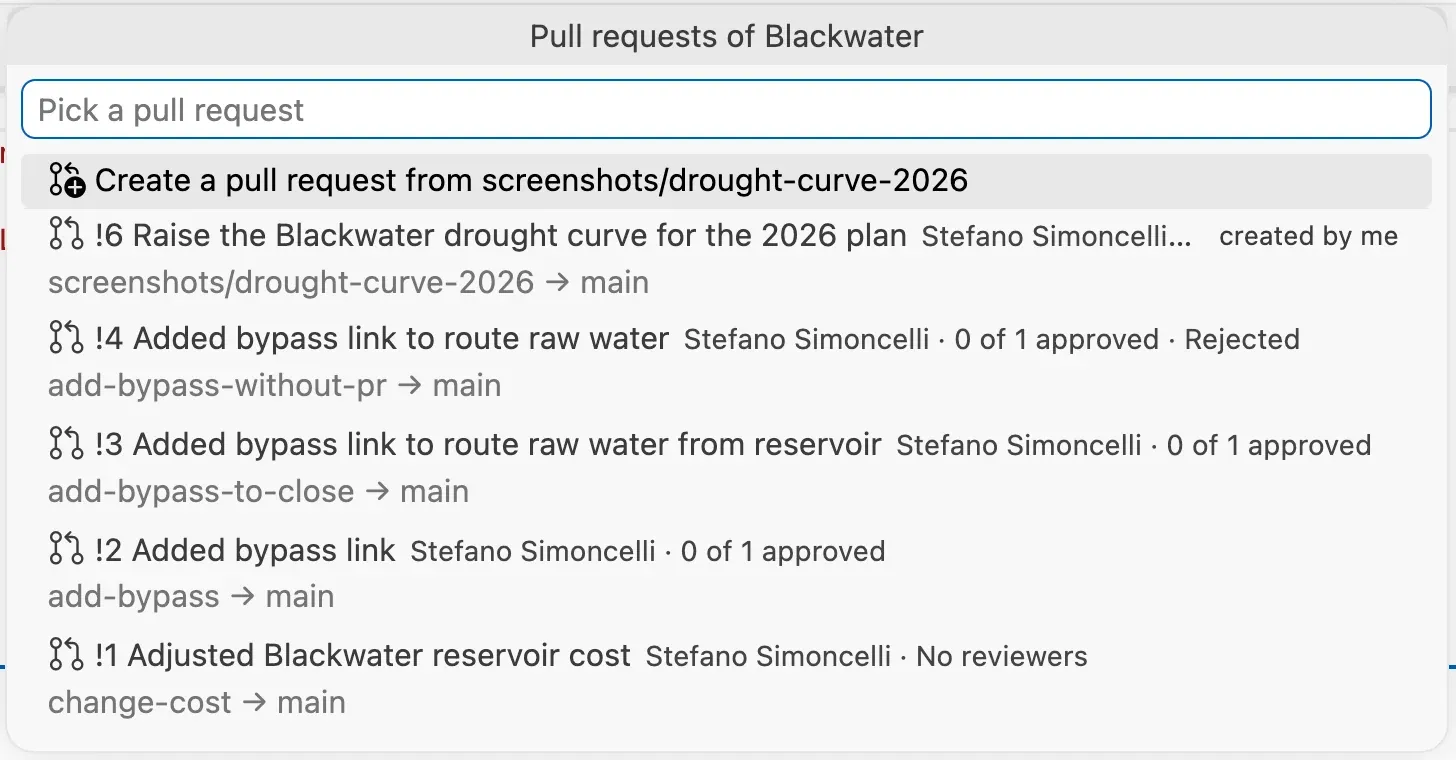
Pick a pull request to see its actions. Check out switches to its branch, so that the panel shows it with its changes and comments.
Pywr for VS Code and Pywr for Azure DevOps are developed and maintained by Stefano Simoncelli.