
Browse a model without a pull request
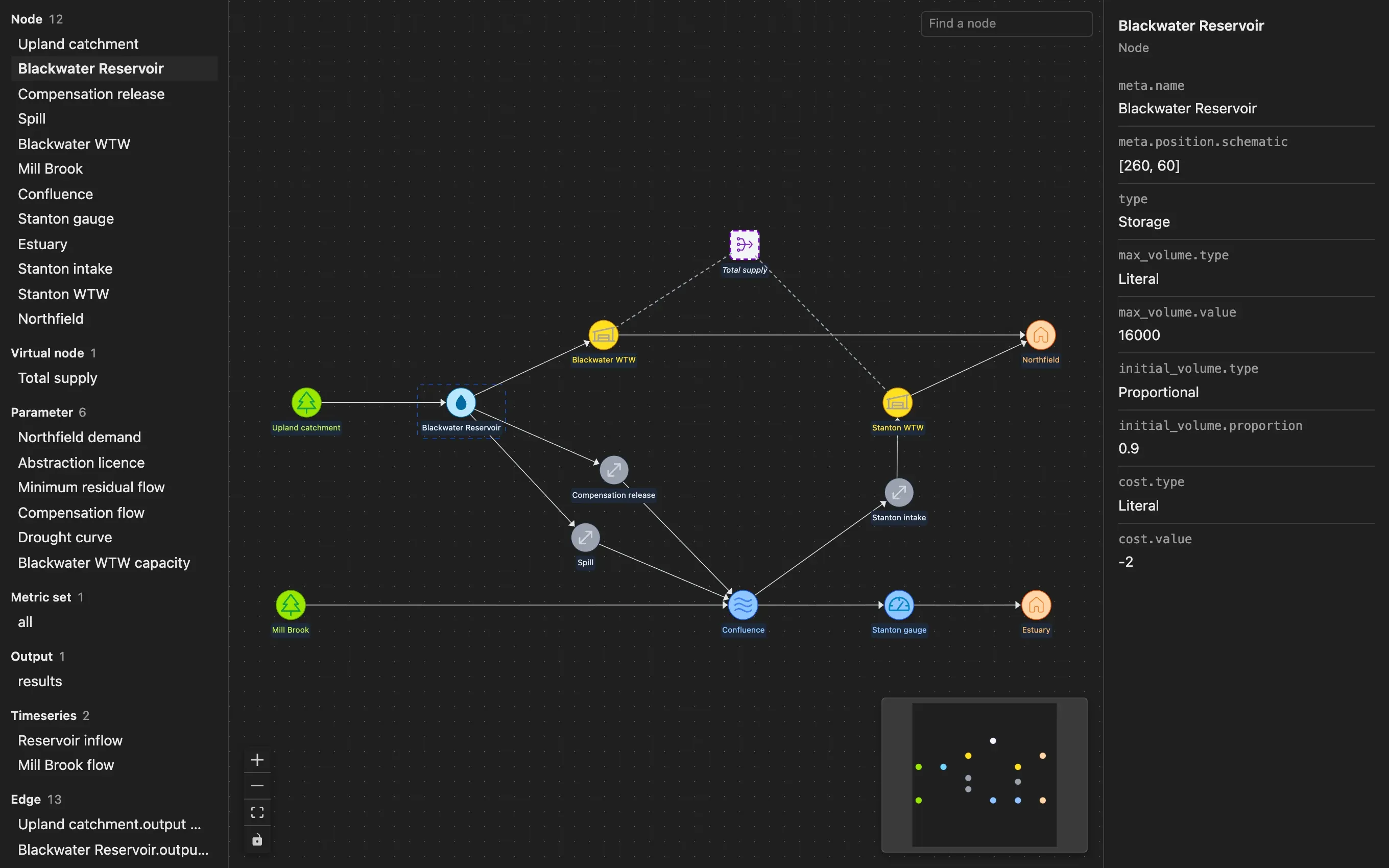
Section titled “Browse a model without a pull request”Open a model file on the Files page of Azure Repos and select the Preview tab. The preview lists the components of the model and draws its schematic. Click a component in the list or a node on the schematic to see its values. You can’t change the model from the preview.
Compare two versions
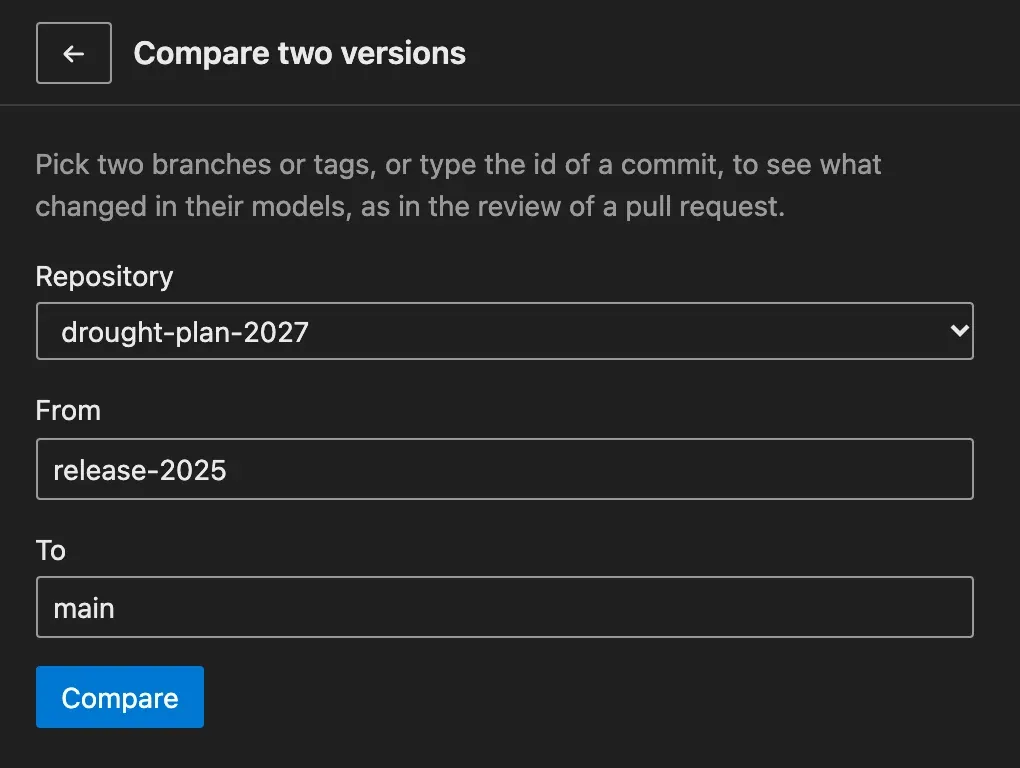
Section titled “Compare two versions”To see what changed between any two versions of a repository, such as a release tag and main, select Compare versions on the Model reviews page. Pick the repository, then type a branch, a tag or a commit in From and To. The changes open in the same three panes as a pull request. Every difference between the two versions is listed, including changes made to From after the two split. A comparison has no pull request, so you can’t comment on it, approve it or tick its changes.
Pywr for VS Code and Pywr for Azure DevOps are developed and maintained by Stefano Simoncelli.