
In your Azure DevOps project, open Repos, then Model reviews, and select a pull request to open its review.
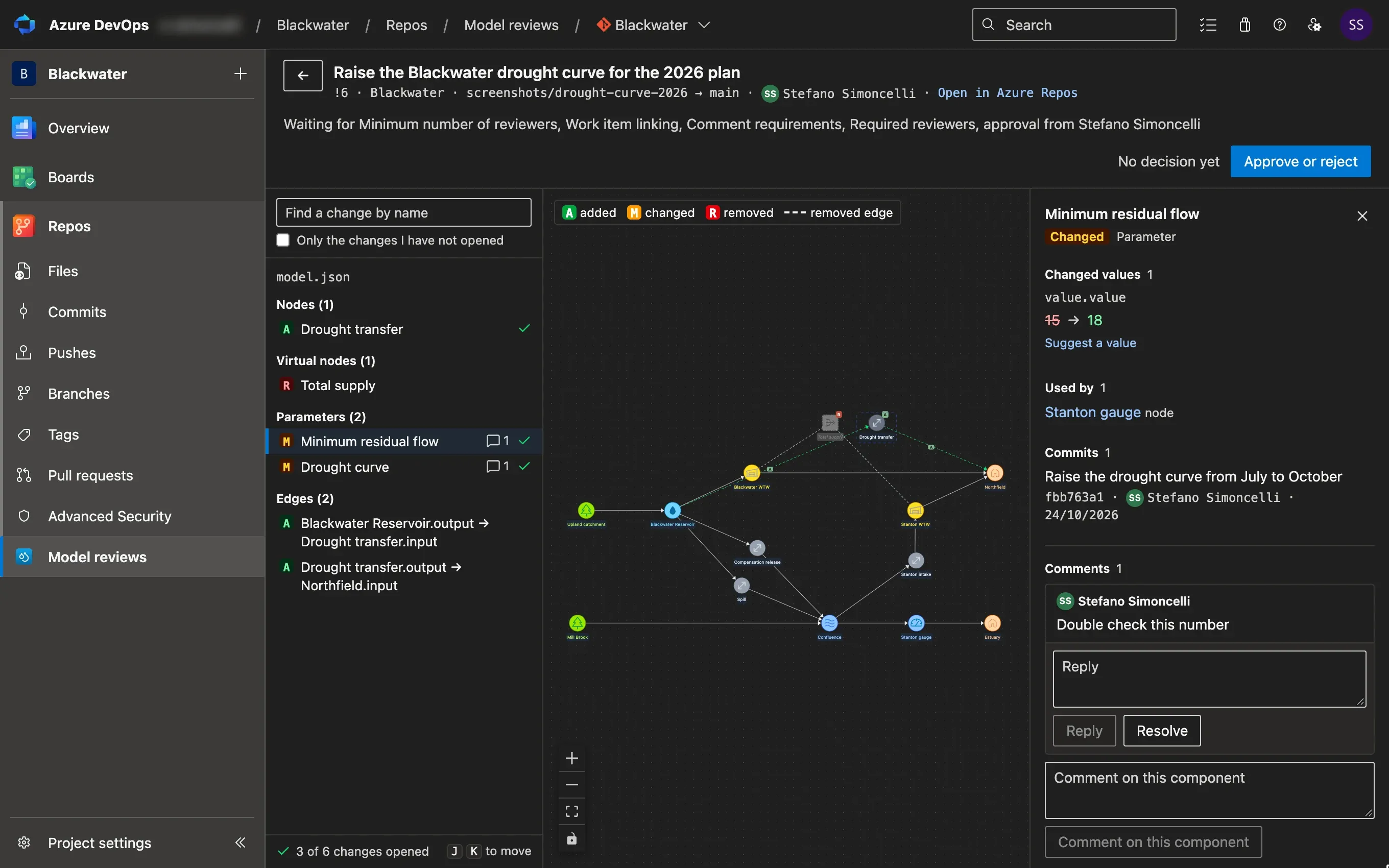
The review has three panes. Drag the edge of a side pane to make it wider or narrower.
| Pane | What it shows |
|---|---|
| Changes, left | The problems the pull request adds, then the changes, grouped by model file and by type of component: nodes, edges, parameters, recorders and so on. A green tick marks the changes you have opened. The other files link to their changes in Azure Repos. |
| Schematic, centre | The model. Added, modified and removed nodes and edges have the letter A, M or R. A removed edge is dashed. The key in the corner explains the marks. |
| Selected change, right | The problems of the component, the components that use it, the commits that changed it, each value it changes, from the Target branch to This pull request, and the comments on the component. |
-
Select a change in the list on the left. The right pane shows its old and new values, and when the change is a node or an edge the schematic moves to it. You can also select a node or an edge on the schematic to open its change.
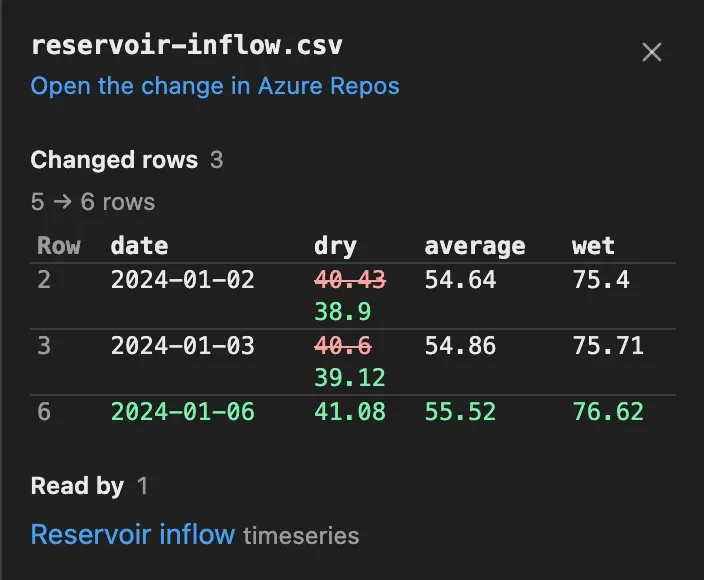
The data files the model reads, such as a CSV file of flows, are listed under Other files. Select one to see the rows that changed, with the old value struck through and the new one under it, and the components that read the file.
-
A profile, or the curves of a control curve, is also drawn as a chart. For a profile, one line is the target branch and the other is this pull request.
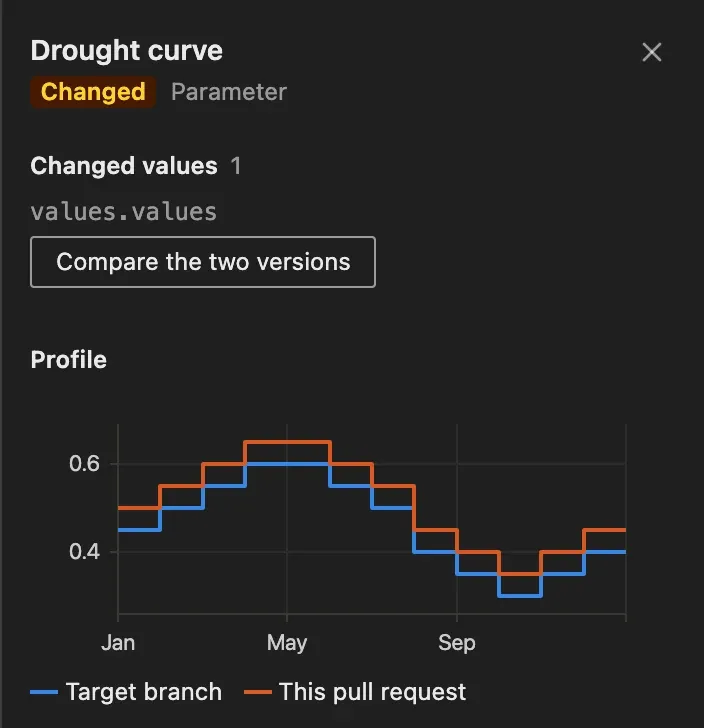
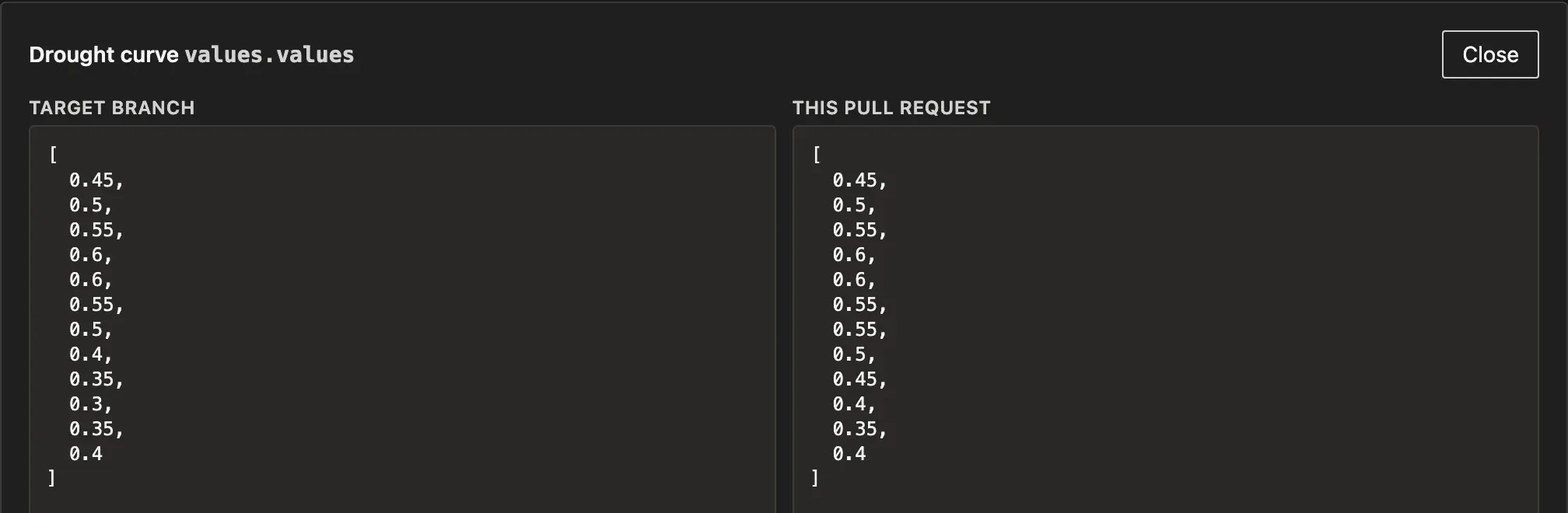
When a value is too long for one line, such as a list of control curves or a monthly profile, select Compare the two versions to see them side by side in a larger view.
-
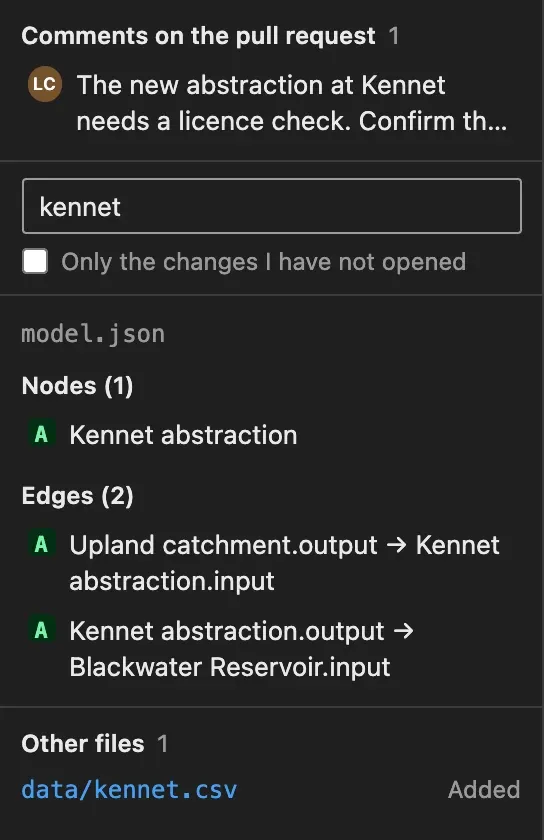
Open every change. The green ticks show which ones you have read, and the bottom of the list counts them, for example 3 of 6 changes opened. Press J and K to go to the next and the previous change. In a long pull request, type a name in Find a change by name, or tick Only the changes I have not opened.
Azure DevOps keeps your ticks, so they are still there when you come back from another computer. If the author changes a component again in a later commit, its tick is cleared until you open the new version. Under your count, the list shows how many changes each other reviewer has opened, for example Anna Rossi has opened 2 of 7.
-
If something looks wrong, or you want the modeller to explain it, write a comment on the change. To comment on the pull request as a whole, use the box at the bottom of the right pane when no change is selected, in Comment on the pull request. Select ✕ at the top of the pane, or press Esc, to close the change.
-
Select Approve or reject at the top of the page to record your decision.
To read the description of the pull request, its files or its commits, open its page in Azure Repos from the link next to its title. The work items linked to the pull request, such as the user story it delivers, are listed under the title, each with its state.
Problems the pull request adds
Section titled “Problems the pull request adds”The extension checks each model the pull request changes and lists what it breaks at the top of the Changes pane, in Problems this pull request adds, such as a node that uses a parameter the model doesn’t have, or two nodes with the same name. A problem that the target branch already has isn’t listed, as the pull request didn’t cause it. Select a problem to open its change; the changes with a problem carry a ⚠ in the list.
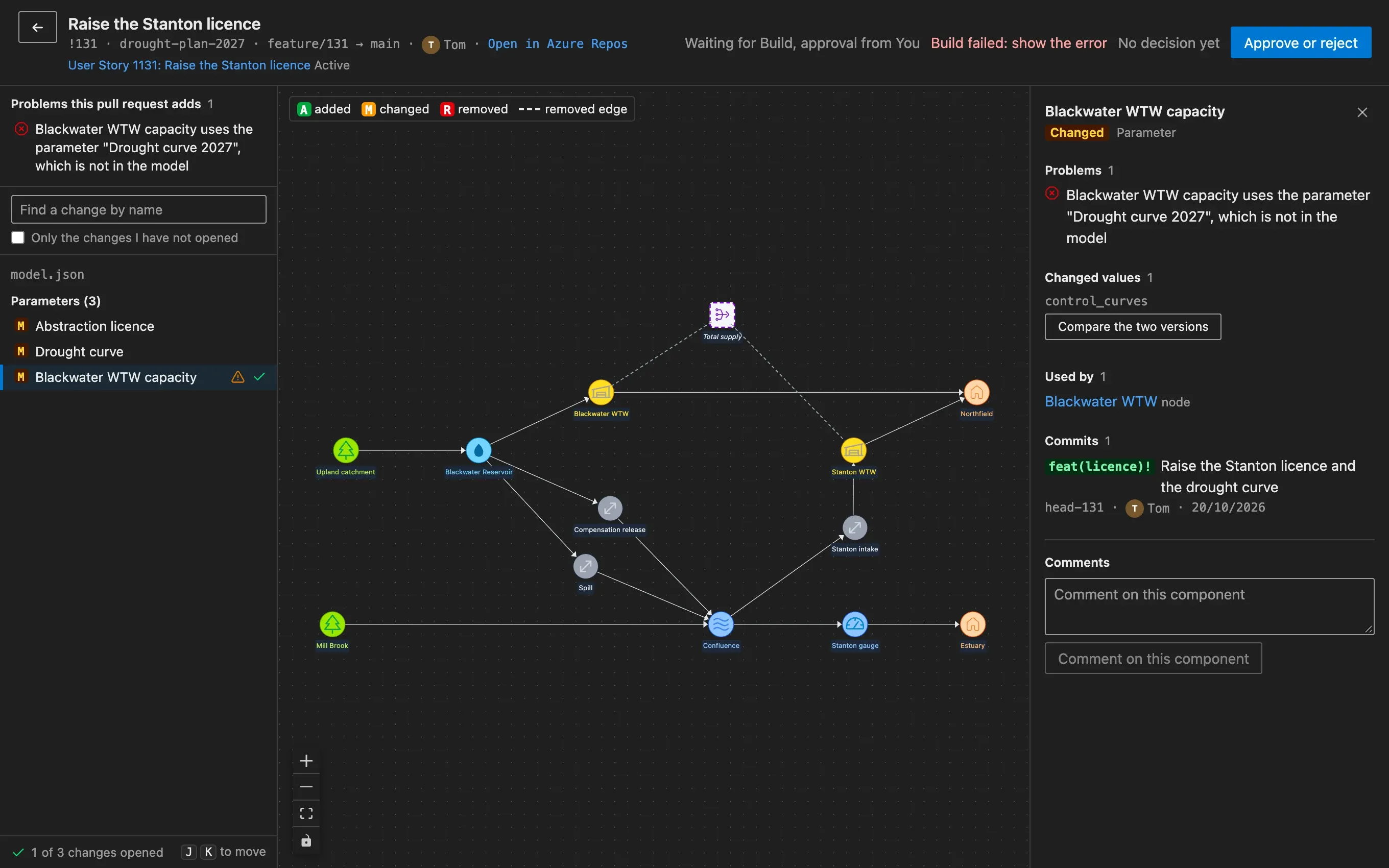
When you select a parameter, a table or another component, Used by lists the components that use it, so you can see what a new value affects. Select one to open its change, or to move the schematic to it when the pull request doesn’t change it.
Completed pull requests
Section titled “Completed pull requests”A completed or abandoned pull request still opens, with its changes, its comments and your final decision, but it takes no more comments or decisions. Use it to look back at why a change was made and who agreed to it.
Pywr for VS Code and Pywr for Azure DevOps are developed and maintained by Stefano Simoncelli.