
Approve or reject opens a dialog with four decisions:
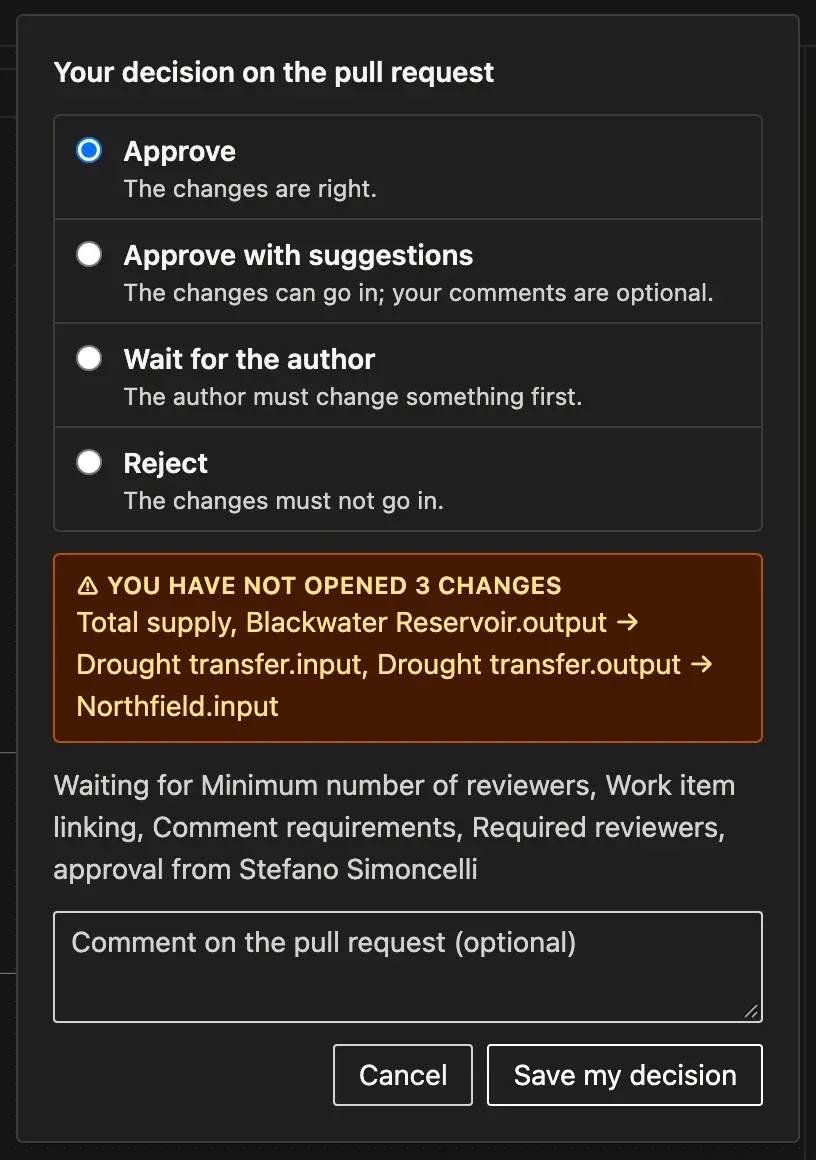
| Decision | Use it when |
|---|---|
| Approve | The changes are right. |
| Approve with suggestions | The changes can go in, and your comments are optional. |
| Wait for the author | The author must change something first. |
| Reject | The changes must not go in. |
The dialog warns you when you have not opened some of the changes or when the pull request adds problems to the model, and names what it still waits for, such as a build or another reviewer. You can add a comment on the whole pull request, to explain your decision. Save my decision records your vote in Azure DevOps.
Once you reject a pull request, the button becomes Reactivate. The dialog then only lets you withdraw your rejection, which resets your vote so the pull request can go in again. A pull request you reject moves from Assigned to me to Rejected.
If the modeller pushes new changes after your decision, your project may reset the votes. Open the review again: it shows the new version.
Compliance made easy
Section titled “Compliance made easy”The decision you take on this page is your vote on the pull request in Azure DevOps. It is the same record you would make from the pull request page, so the controls of your project apply as usual:
- Branch policies count your vote. If the main branch needs the approval of a line manager, or of two reviewers, the change waits for it.
- Before you save a decision, the extension lists the changes you have not opened yet, the problems the pull request adds to the model, and what else it waits for, such as a build.
- Your comments are stored on the lines of the model file in Azure DevOps. The modeller sees them in VS Code and in the Files tab, and they stay with the pull request after it is completed.
- Azure DevOps keeps who approved what and when, so an auditor can trace each change to the main model back to its request, its review and its approvals.
Pywr for VS Code and Pywr for Azure DevOps are developed and maintained by Stefano Simoncelli.